
External Camera Streaming + Video Wall Layouts
Integrate external cameras into FlytBase Video Wall with layout control.
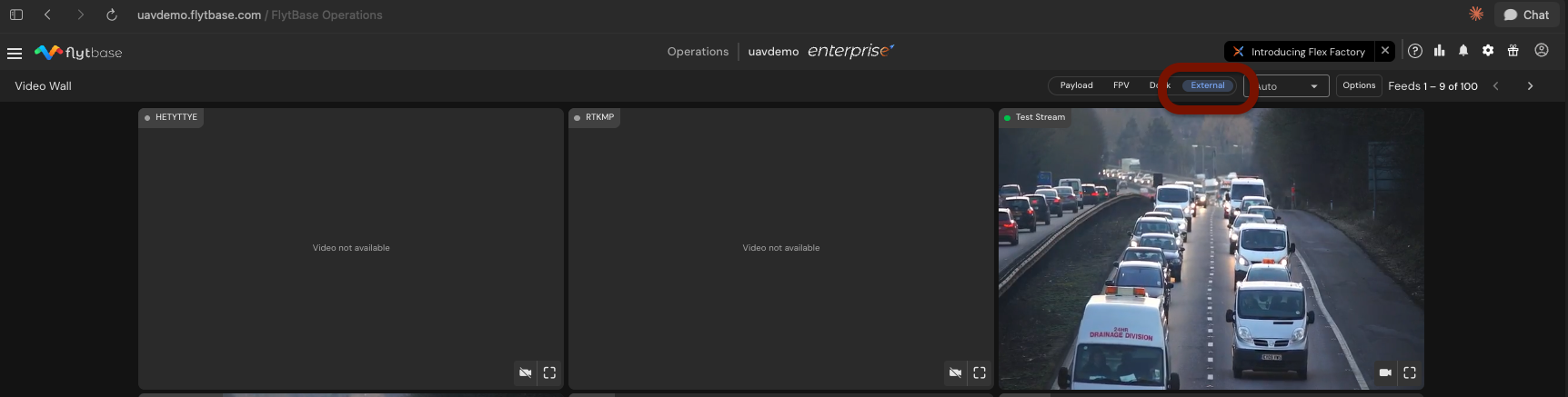
The integration of external camera streaming into the FlytBase Video Wall provides a comprehensive surveillance solution by allowing users to incorporate existing fixed cameras, such as building CCTV and perimeter cameras, into the platform. This feature addresses the previous limitation where only drone video feeds could be displayed, thus enhancing the monitoring capabilities by providing a unified interface for all video sources. Operators can now manage these external feeds alongside drone footage, offering a more complete view of their environment. The Video Wall's new layout controls further enhance this capability, allowing users to choose grid layouts, reorder tiles, and spotlight specific feeds for better focus during critical operations. This feature is particularly beneficial for security teams and facility managers who require constant surveillance and swift response capabilities. By integrating existing camera infrastructure, users can optimize their monitoring operations, leading to increased efficiency and reduced oversight.
How It Works
The integration of external camera streaming into the FlytBase platform involves several key components that work together to provide a seamless experience. When a user adds a camera, they can do so manually by entering the stream URL and optional authentication credentials. This allows for precise control over which cameras are integrated and how they are accessed. Alternatively, users can import multiple cameras at once using a CSV file, which is particularly useful for large deployments. This bulk addition process provides feedback on any errors encountered, ensuring that all cameras are correctly configured.
Another method for adding cameras is through integration with Milestone XProtect, a popular video management system. This integration allows for the auto-discovery and import of cameras from a Milestone XProtect server, streamlining the process for users who already utilize this system. Once the cameras are added, they can be managed through the FlytBase interface, where operators can enable or disable cameras individually or in bulk, and place them on a map associated with specific docks.
The Video Wall layout feature is designed to provide flexibility in how video feeds are displayed. Operators can select from various grid layouts, including Auto, 2×2, 3×3, or 4×4, depending on their monitoring needs. The layout can be customized by dragging tiles into a preferred order, allowing for a personalized viewing experience. Additionally, users can spotlight a particular feed, making it more prominent on the screen, which is useful during critical monitoring scenarios. The system supports multiple stream types, such as RTSP, RTSPS, RTMP, RTMPS, SRT, and HLS, and automatically re-encodes incompatible streams for browser playback, ensuring smooth operation across different devices.
Prerequisites
Before using the external camera streaming feature, ensure that the following prerequisites are met:
- The
external_video_sourcesfeature flag must be enabled for your organization. Contact the FlytBase product or engineering team to activate this feature. - Ensure that your cameras support one of the compatible stream types: RTSP, RTSPS, RTMP, RTMPS, SRT, or HLS.
- If integrating with Milestone XProtect, ensure that you have the API Gateway address and basic user credentials for access.
Step-by-Step Configuration
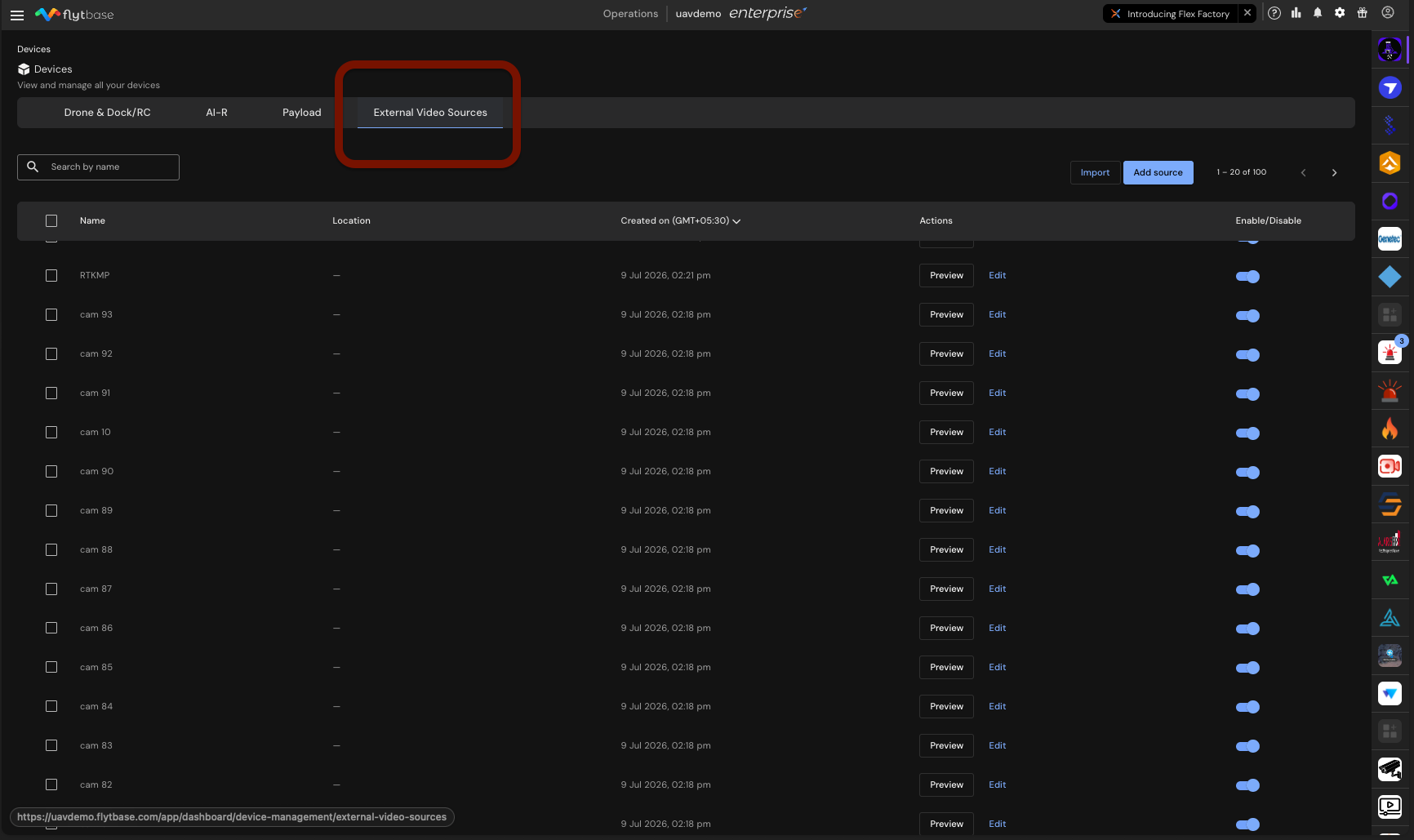
- Navigate to External Video Sources in the FlytBase interface.
- This section allows you to manage all external cameras, providing options to preview, edit, and enable or disable each source.
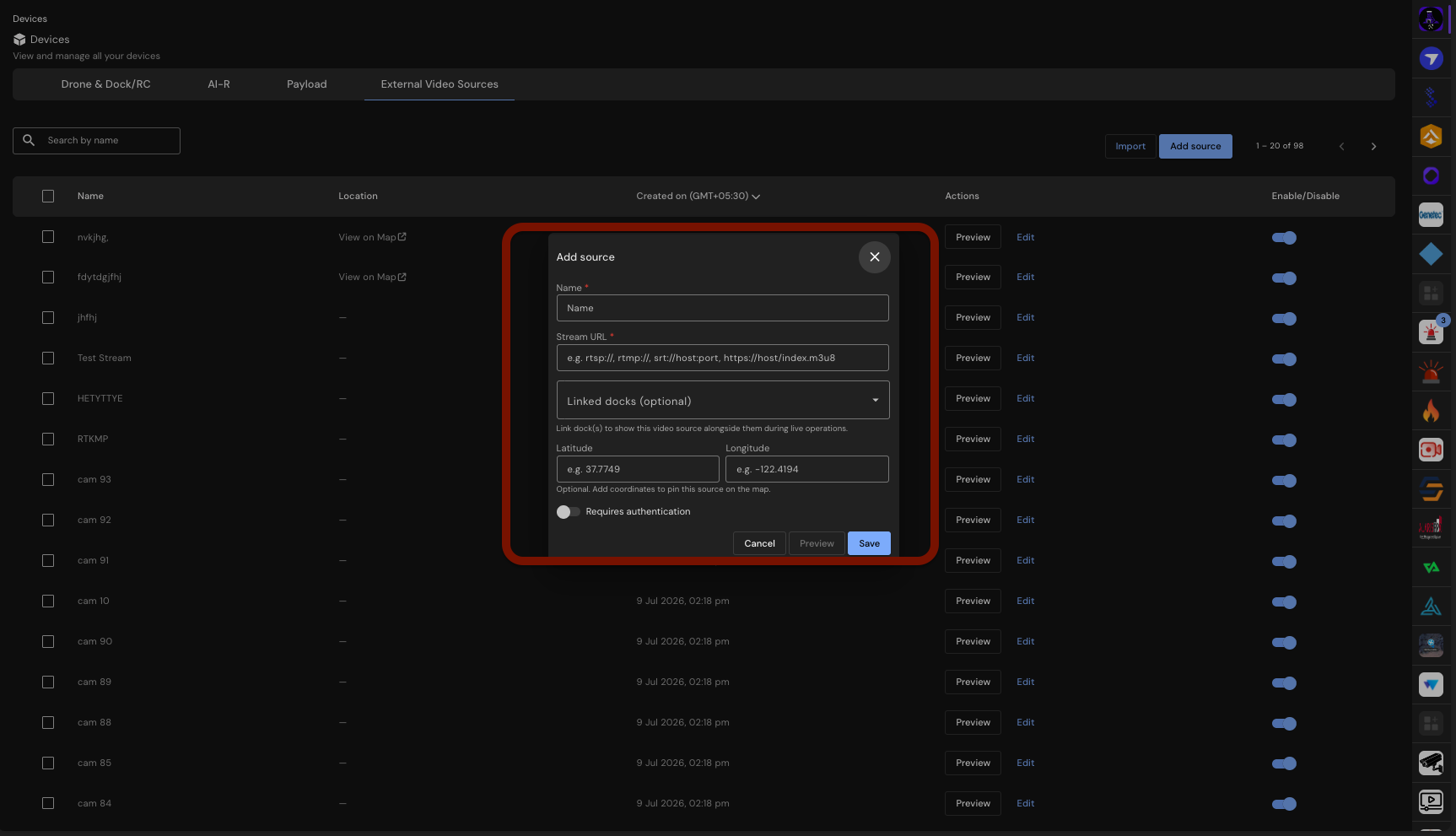
- Click on Add Source to manually add a new camera.
- Enter the camera name, stream URL, and optional coordinates. This information is used to configure the camera within the FlytBase system.
- Select the CSV Import option if you wish to add multiple cameras at once.
- Upload a CSV file containing the necessary camera details. The system will process the file and provide feedback on any errors encountered.
- Integrate with Milestone XProtect if applicable.
- Use the auto-discover feature to import cameras from your Milestone XProtect server, simplifying the setup process.
- Customize the Video Wall layout by selecting a grid option.
- Drag and drop tiles to reorder them or spotlight a specific feed for focused monitoring.
Constraints & Limitations
| Component | Details |
|---|---|
| Stream Types | RTSP, RTSPS, RTMP, RTMPS, SRT, HLS |
| Capacity | Up to 100 cameras per organization |
| Camera Credentials | Optional per camera; stored encrypted |
| SRT Addresses | Must include a port number |
| HLS Addresses | Must point at an .m3u8 playlist |
| VMS Integration | Milestone XProtect (requires API Gateway address and basic user) |
| Video Wall Layouts | Auto, 2×2, 3×3, 4×4 |
| Layout Persistence | Remembered per browser, not per account |
The constraints in this feature are designed to ensure optimal performance and security. For instance, the stream types supported are limited to widely used protocols to maintain compatibility and reliability. The capacity limit of 100 cameras per organization is set to prevent system overload and ensure smooth operation. Storing camera credentials in an encrypted format protects sensitive information, while specific requirements for SRT and HLS addresses ensure proper stream configuration. The integration with Milestone XProtect requires specific credentials to maintain secure access.
Edge Cases & Troubleshooting
- Problem: Camera stream not displaying.
- Cause: Stream URL incorrect or unsupported format.
- Solution: Verify the stream URL and ensure it uses a supported protocol (RTSP, RTSPS, RTMP, RTMPS, SRT, HLS).
- Problem: Unable to import cameras from CSV.
- Cause: CSV file format incorrect or missing required fields.
- Solution: Check the CSV file for correct formatting and ensure all necessary fields are included.
- Problem: Milestone XProtect integration fails.
- Cause: Incorrect API Gateway address or user credentials.
- Solution: Verify the API Gateway address and credentials used for the integration.
- Problem: Video Wall layout not saving.
- Cause: Browser settings preventing layout persistence.
- Solution: Ensure that browser settings allow for data storage and try saving the layout again.
Related Pages
Was this helpful?