
Vehicle Mounted Mode Setup for DJI Dock 3
Keywords: Vehicle Mounted Mode, DJI Dock 3, DJI RC Plus 2, Dock Deployment, Mobile Deployment
Overview
This guide explains how to configure Vehicle Mounted Mode for DJI Dock 3 using the DJI RC Plus 2 on DJI Enterprise app.
Vehicle Mounted Mode is used when the DJI Dock 3 is deployed on a vehicle-mounted mode instead of a fixed mode. During this setup, the DJI Enterprise app guides you through the required deployment checks and calibrations to ensure the dock, aircraft, and vehicle-mounted mode is ready for safe operations.
Before You Start
Before beginning the setup, make sure that:
- The DJI Dock 3 is securely mounted on the vehicle-mounted platform.
- The dock and aircraft are powered on.
- DJI RC Plus 2 is available and connected to the dock.
- DJI Enterprise app is installed on your RC
- The dock has a stable network connection.
- The RTK module and wind speed gauge are installed.
- The aircraft is available for compass calibration.
- The surrounding area is clear and safe for setup.
Do not perform Vehicle Mounted Mode setup while the vehicle is moving. Complete the setup only when the vehicle is parked.
Setup Flow
The setup process on the DJI Enterprise app includes the following checks and configurations:
- Dock deployment checks Verify dock grounding, cable connections, protective plugs, and AC power status.
- RTK and wind sensor checks Confirm that the RTK module and wind speed gauge are installed correctly.
- Vehicle-mounted deployment check Confirm that the dock base is securely fixed, the safety rope is attached, the dock tilt angle is within the required range, and the vehicle-mounted gimbal mount is installed.
- Network configuration Verify that the dock is connected to the required network.
- Cloud service configuration Confirm the cloud service, organization, dock name, and aircraft name.
- Dock location calibration Calibrate the dock location and verify the coordinate and height differences shown on the RC.
- Alternate Landing Location, or Safe Location Set an alternate landing location near the vehicle in case the aircraft cannot land inside the dock.
- Aircraft compass calibration Complete compass calibration as guided on the RC.
- Aircraft placement Place the aircraft on the dock landing pad and confirm that its heading is aligned correctly.
Once all steps are completed successfully, the RC will indicate that the configuration is complete.
Setup Video
Follow the video below to complete Vehicle Mounted Mode setup on DJI Enterprise app:
Verify Safe Location
After completing Vehicle Mounted Mode setup from the DJI DJI Enterprise app, verify whether the Safe location has been configured.
Follow the video below to set Safe Location from DJI RC Plus 2 on DJI Enterprise app:
You can check this from the FlytBase dashboard:
- Go to Devices.
- Select the required Dock.
- Open the Overview tab.
In the dock device information panel, check the Safe location field.
If the safe location was not set during RC setup, the dashboard shows:
Safe location: Not configured
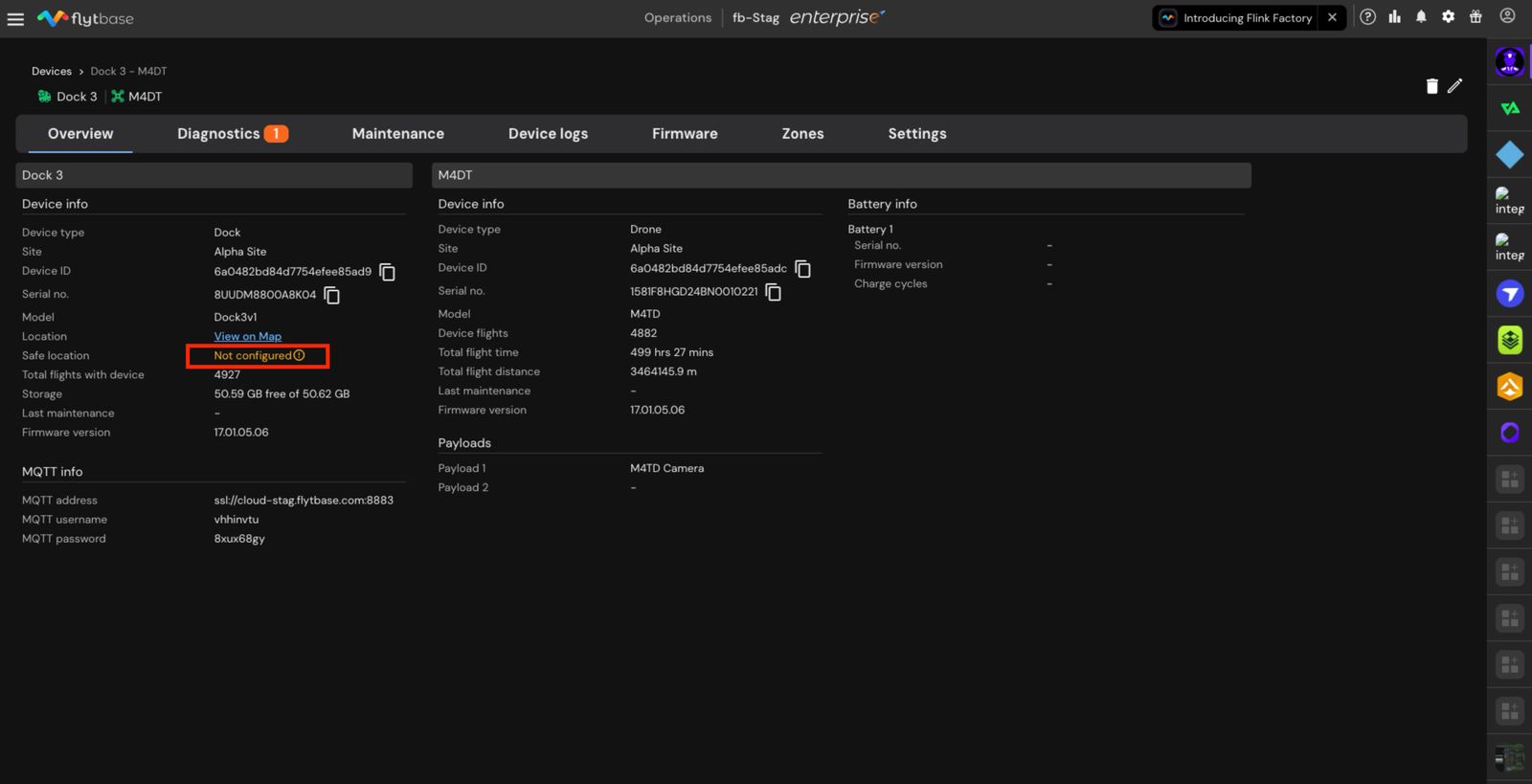
You can also verify the safe location status from the DJI RC Plus 2 during the dock deployment flow.
For vehicle-mounted deployments, configure the Safe location before starting operations. The Safe location is used as the alternate landing point if the aircraft cannot land inside the dock.
Dock RTK Calibration from Flytbase Dashboard
Use Dock RTK calibration when the dock position has changed and the RTK location needs to be recalibrated.
If you switch the dock from Vehicle Mounted Mode to Fixed Mode and later switch it back to Vehicle Mounted Mode, the setup must be completed again from the DJI RC Plus 2 before dashboard-based RTK calibration can be used.
Initial Vehicle Mounted Mode setup must be completed from the DJI RC Plus 2. After the first setup is completed, future Dock RTK calibrations can be performed from the FlytBase dashboard.
To start RTK calibration from the FlytBase dashboard:
Devices → Select Dock → Maintenance → Device controls → Dock RTK calibration
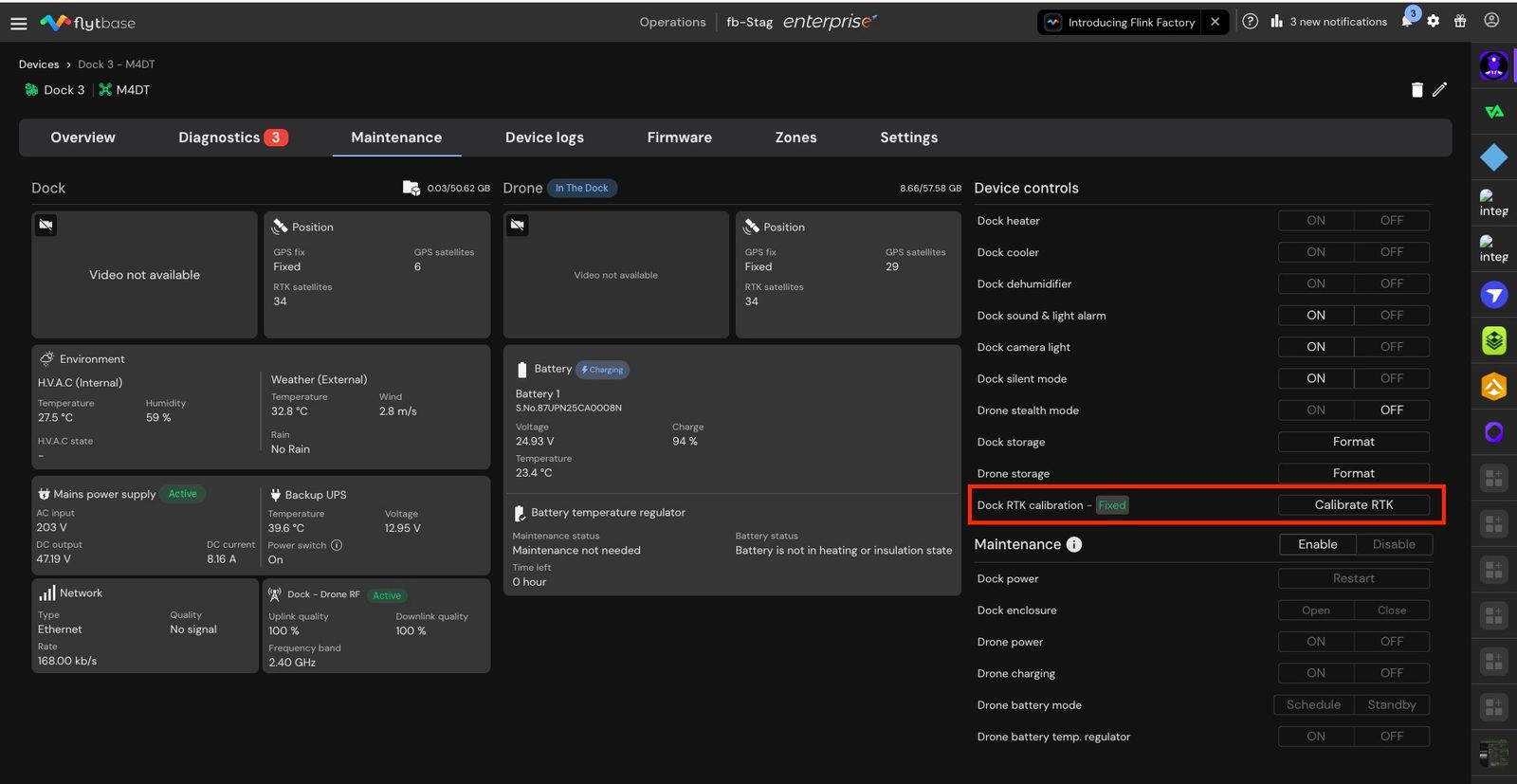
Click Calibrating RTK to begin the calibration process.
The RTK status is shown next to the control. For example, it may show Fixed when the RTK position is stable.
The Dock RTK calibration control is available for Vehicle Mounted Mode. This button is disabled when the dock is operating in Fixed Mode.
Relative Safe Landing Location during RTK calibration
When you click Dock RTK calibration, FlytBase starts the RTK recalibration flow for the dock.
As part of this process, a Relative Safe Landing Location is set within a radius of the calibrated dock position. This Safe Landing Location acts as a nearby fallback location that can be used if the aircraft is unable to land inside the dock.
If the dock is moved, run Dock RTK calibration again so this relative Safe Location is updated correctly.
Final Notes
- Complete the setup steps in the same sequence shown on the RC.
- Do not skip deployment checks, location calibration, alternate site setup, or compass calibration.
- Make sure the dock tilt angle is within the required range before proceeding.
- Verify that the aircraft is placed correctly on the landing pad before completing the setup.
Vehicle Mounted Mode should be configured during initial deployment or whenever the dock is moved to a new vehicle-mounted setup.
Was this helpful?