
Key Bindings
Learn more about the default key bindings, personalize your Keyboard commands and verify Controller key bindings prior to using Manual Controls.
FlytBase enables operators to manually control the drone through the Dashboard during missions or emergencies. In manual mode, the drone can be operated using a keyboard and mouse, or specialized controllers such as a gamepad or joystick. The Key Bindings tab on the Dashboard allows you to manage and customize these controls:
- Customize Key Bindings: Adjust the key bindings for the keyboard and mouse to suit your preferences.
- Review Default Bindings: View the pre-set key bindings for controllers, including the joystick and gamepad.
- Test Controller: Use the gamepad simulator to test the functionality of the gamepad.
Keyboard Bindings
Keyboard Bindings
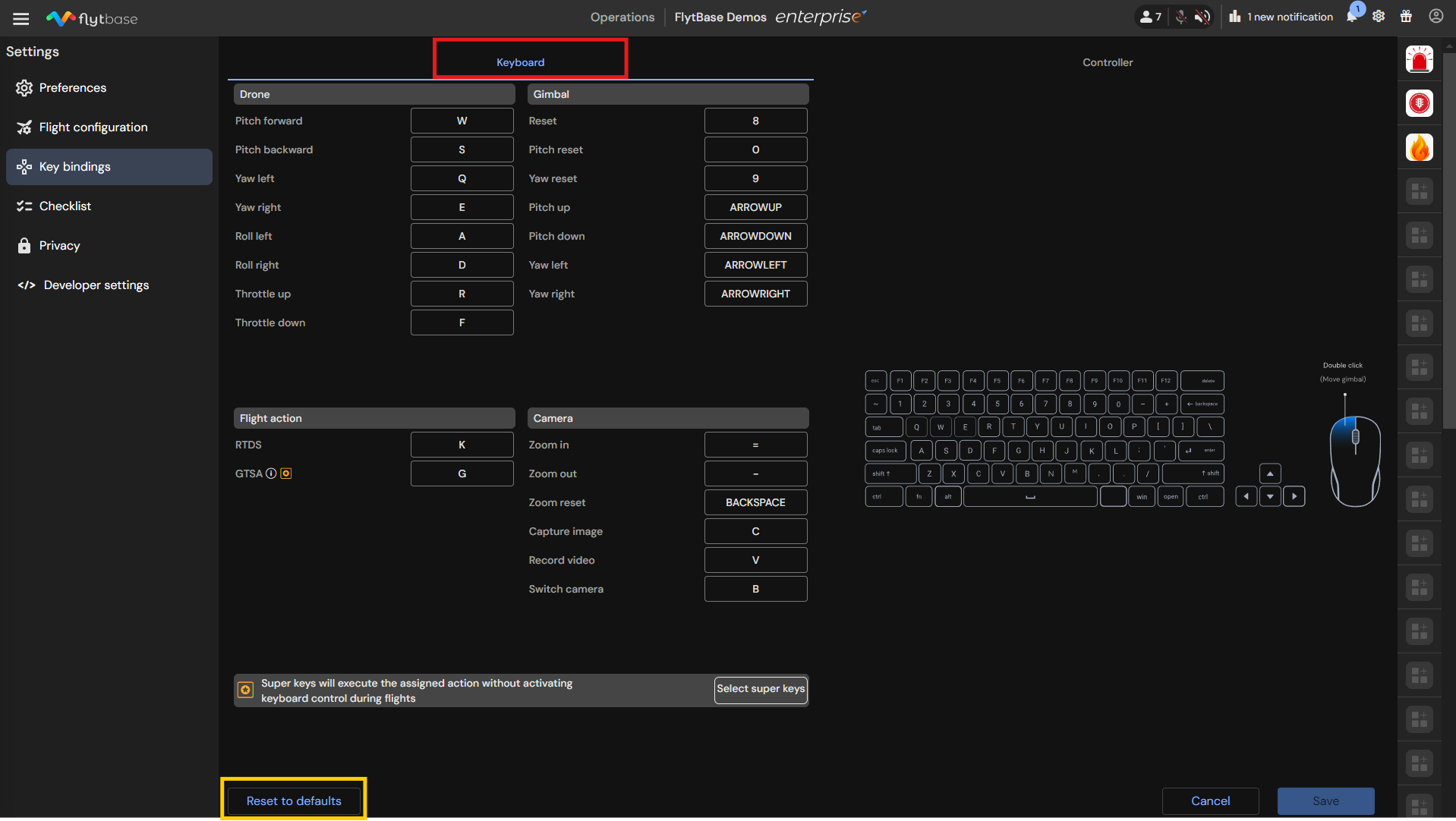
To access/change keyboard bindings, follow these steps:
- Go to Key Bindings -> Keyboard
- Click on the required command, and assign a key as per your preference.
- To revert to the original keyboard bindings, click on the Reset to defaults button.
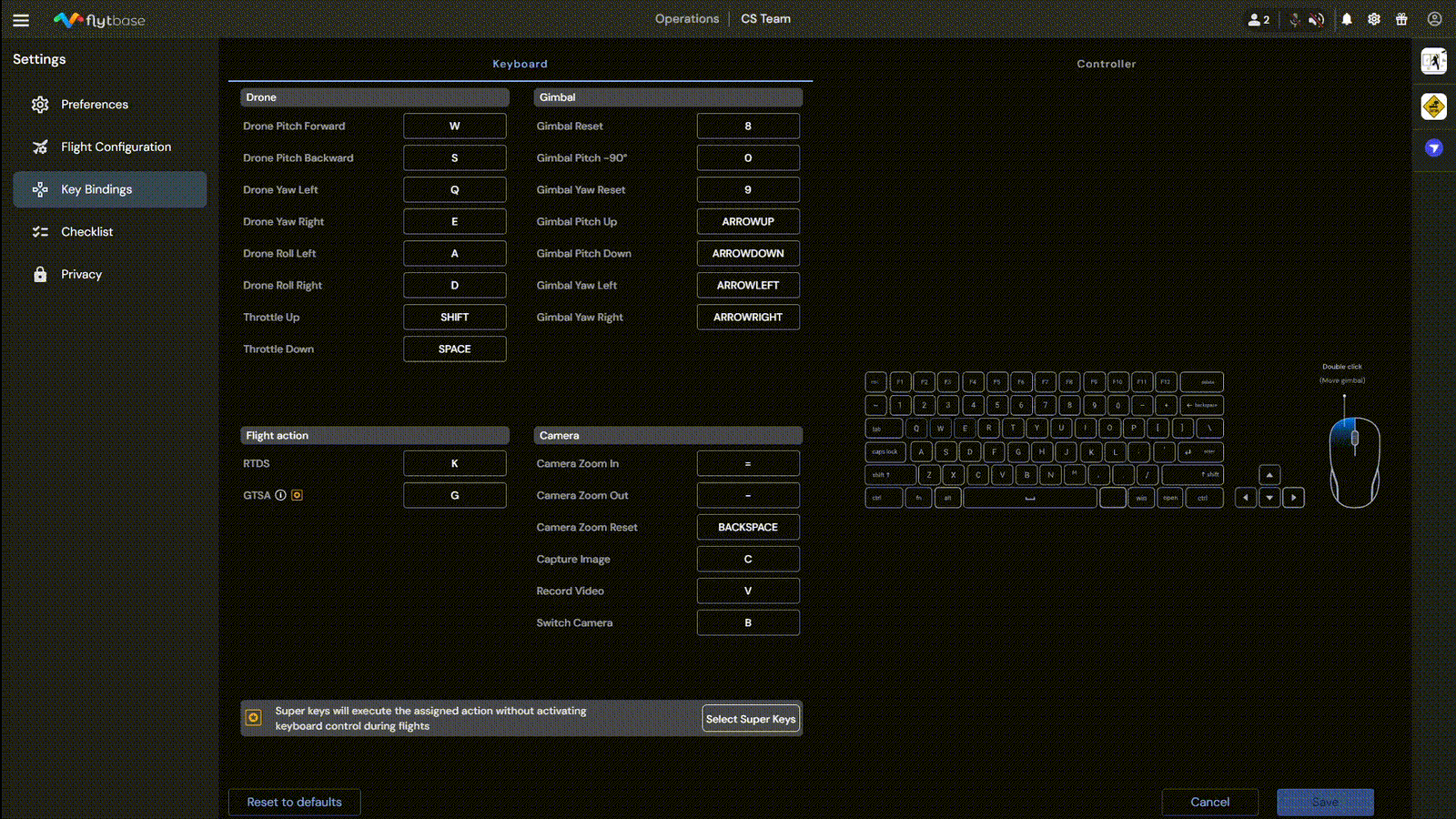
As of October 15, 2024, the default key bindings for Throttle Up/Down have changed from Space/Shift to R/F, and any custom bindings have been reset. Please verify your key bindings before manually controlling the drone.
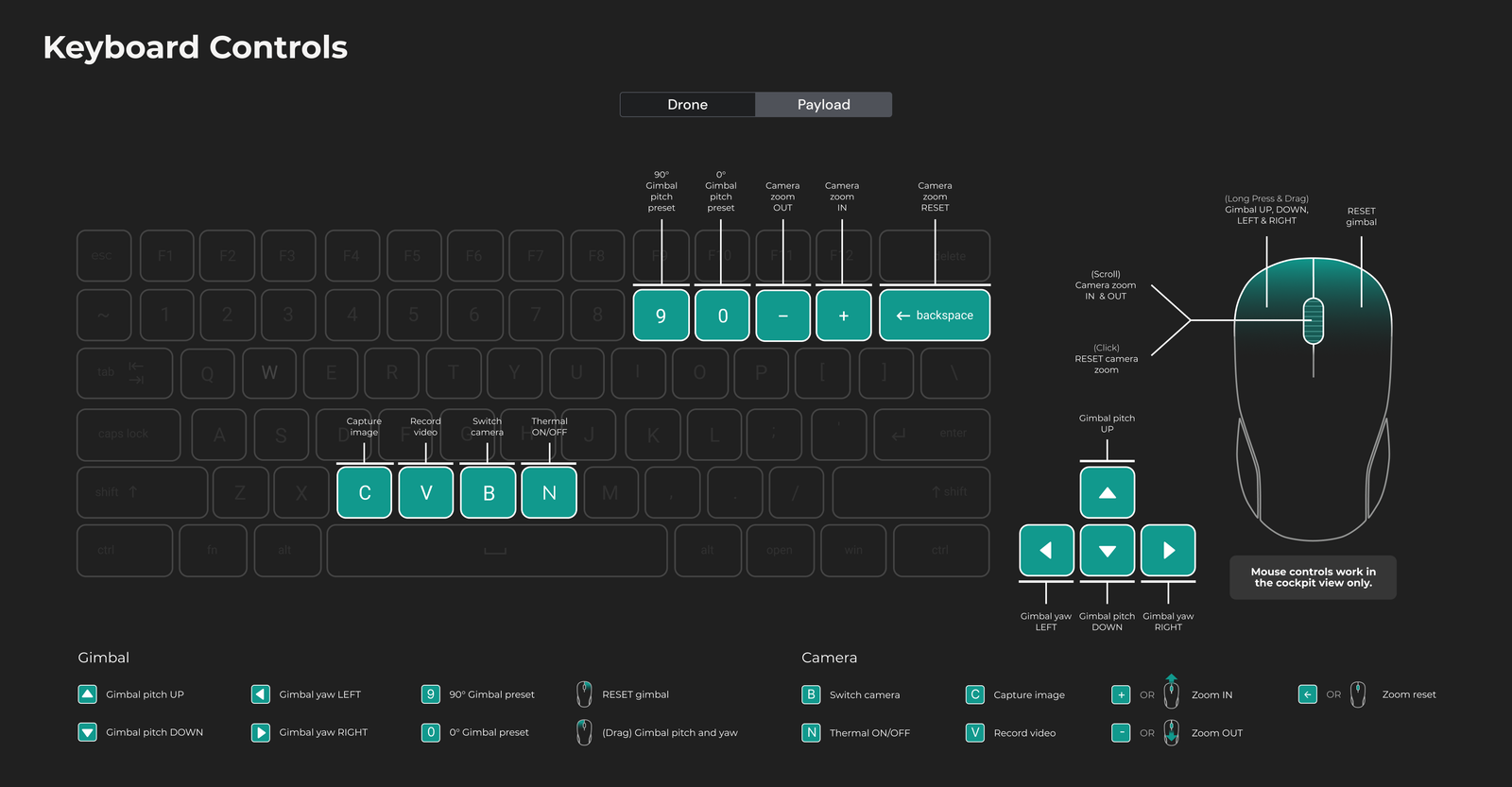
Default Keyboard Commands: Payload Control
Controller Bindings
Controller Bindings
- Navigate to Key Bindings -> Controller
FlytBase currently supports the following Controllers for the Manual flight of the drone:
- Thrustmaster T.16000M FCS Joystick
- Xbox 360 Gamepad (Wired)
Currently, FlytBase does not support custom key bindings for the supported Controllers.
Thrustmaster T.16000M FCS: Key Bindings and Actions
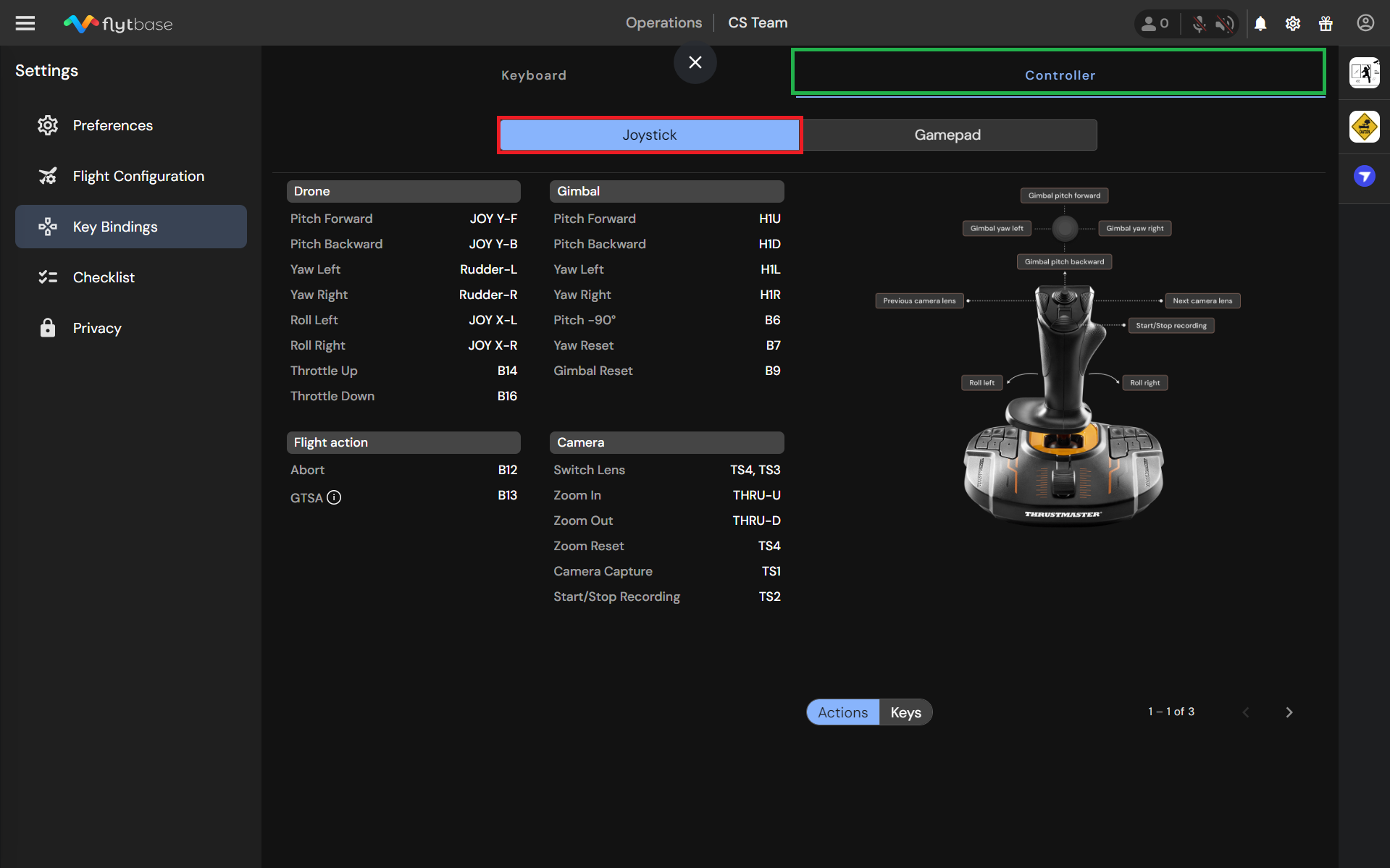
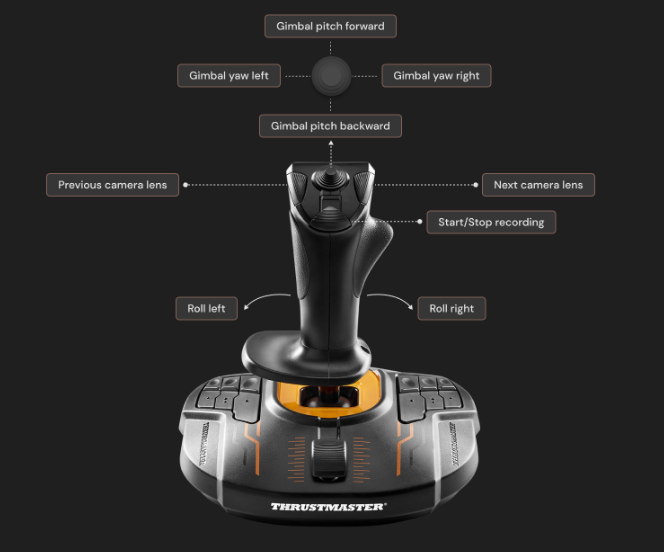
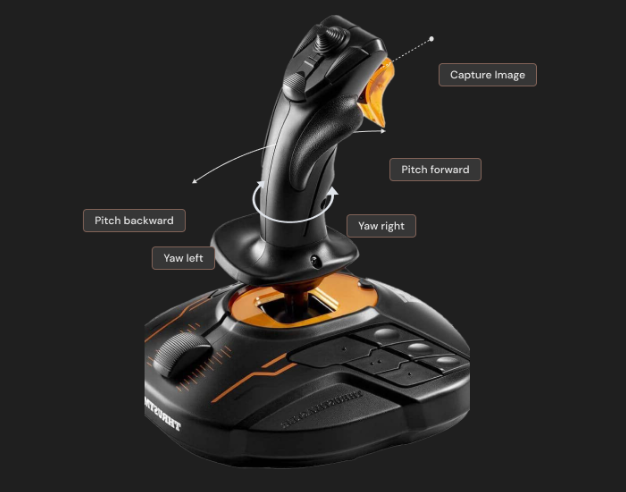
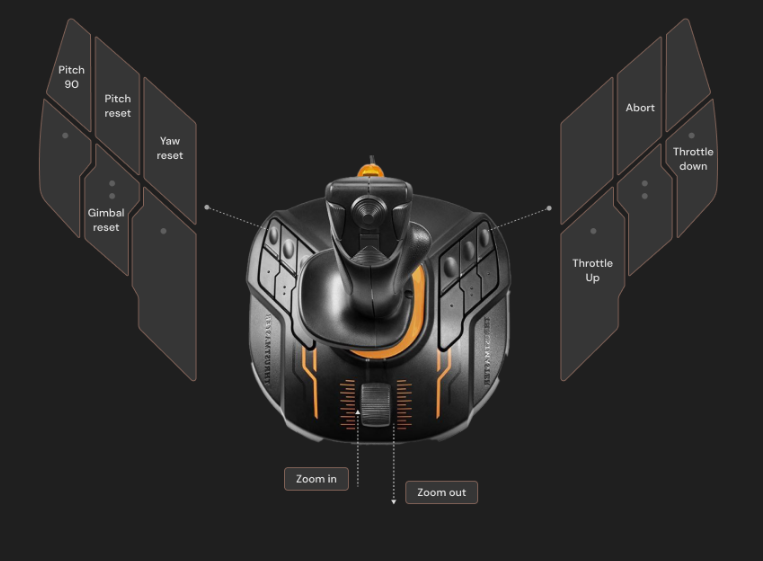
Xbox 360 Gamepad: Key Bindings and Actions
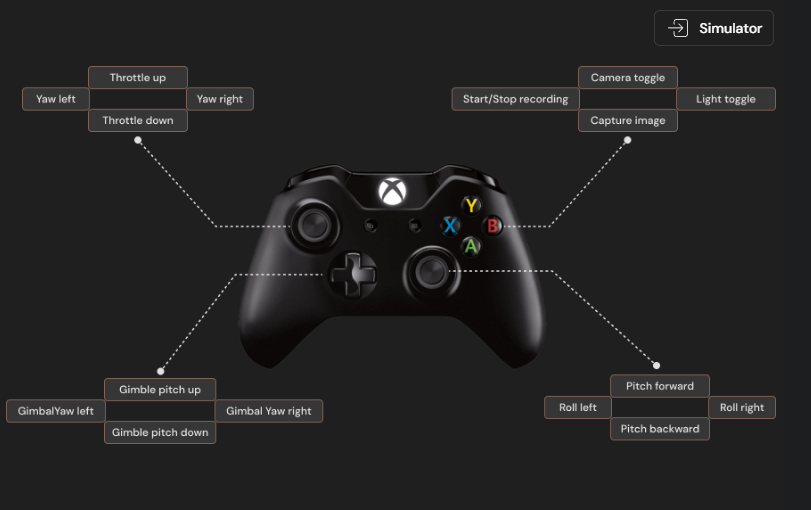
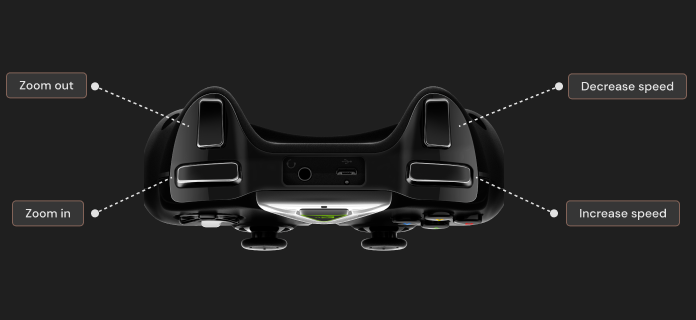
The controls of the Xbox 360 Gamepad can be tested using the Gamepad Simulator.
Currently, the Simulator is only available for the Xbox 360 Gamepad.
Gamepad Simulator
Gamepad Simulator
To test the console keys for the Xbox 360 Gamepad, go to Key Bindings -> Controller -> Gamepad, and click on the Simulator button.
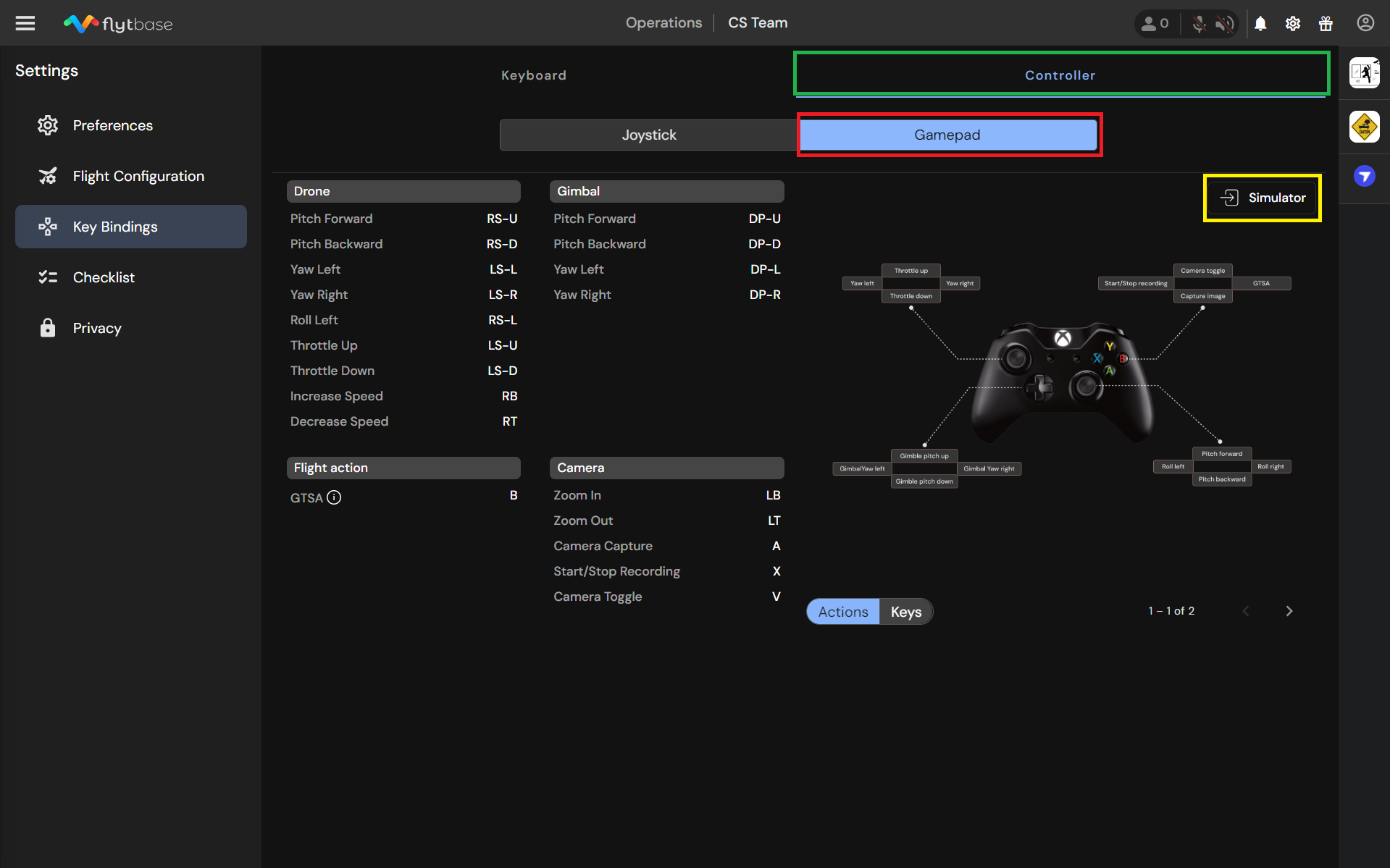
Once done, connect your Xbox 360 joystick and press the keys to test whether the commands are being received appropriately.
Only a wired Xbox 360 Gamepad is supported on FlytBase.
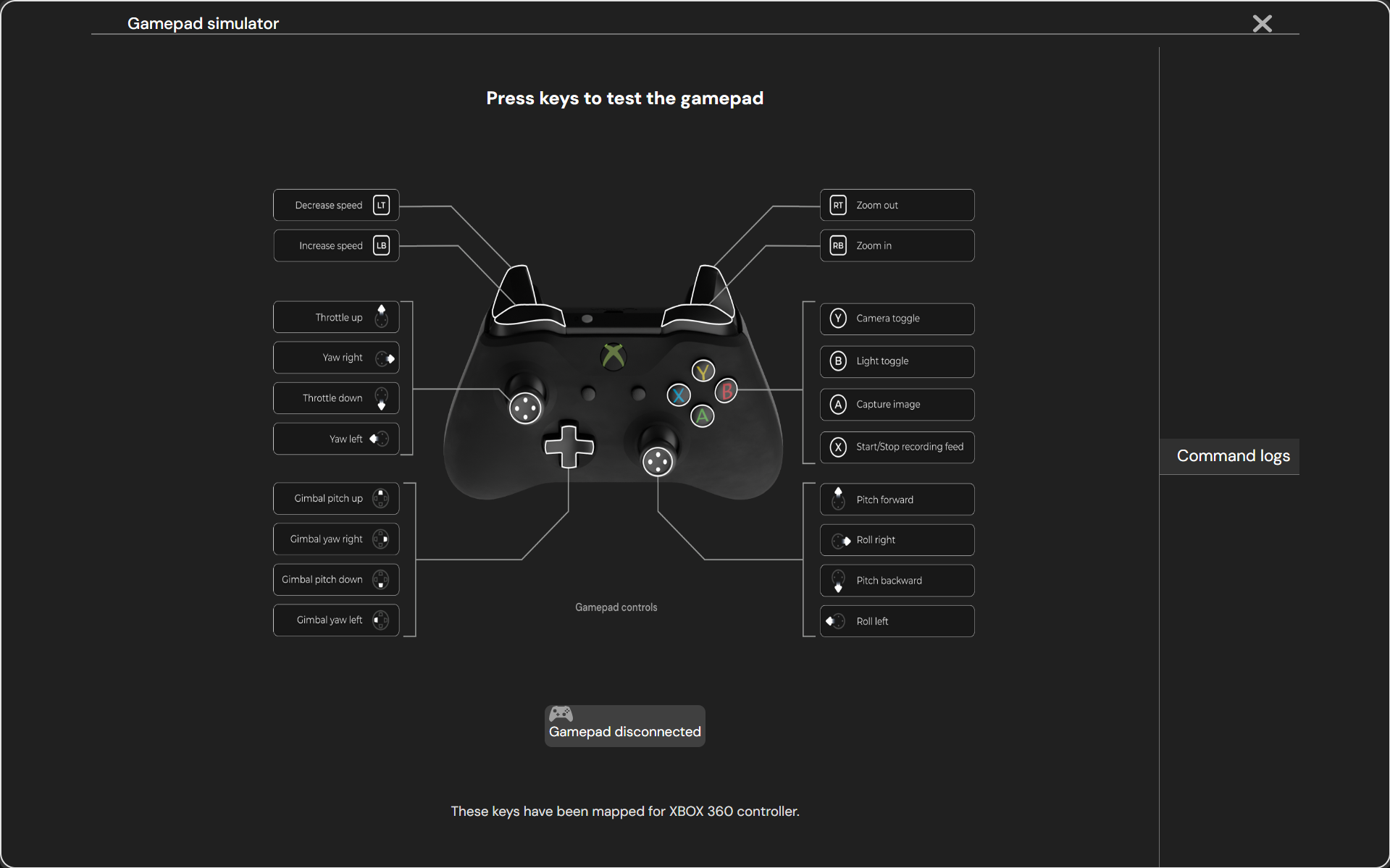
To learn about how to take Manual Control of the drone, refer to the following documentation:
To learn about Manual Payload Control, refer to the following documentation:
Was this helpful?