
Flight Execution
Know more on how to execute a mission on the FlytBase dashboard.
Executing a Mission Using the Drone Control Panel
The Drone Control Panel acts as a central hub for efficient mission execution. You can give the following mission commands using the drone control panel:
- Go to Location: Direct the drone to fly to a specific GPS location.
- Executing a Pre-planned Mission: Access and execute your pre-planned missions efficiently.
- Path Mission
- Grid Mission
For additional information on mission planning, please refer to the following documentation.
Make sure the operator has the necessary airspace regulatory permissions before flying the drone. Important Notice: Cockpit 3.0 is out now, and you should try using it as Cockpit 2.0 will be deprecated soon. To activate Cockpit 3.0: - Go to settings (gear icon). - Navigate to 'General'. - Find 'Cockpit Version' and select 'Cockpit 3.0' from the dropdown. - Return to the homepage to see a blue widget directing to Cockpit 3.0.

How to Execute a Pre-planned Mission
- Make sure you pick the right drone card for the drone you want to use to perform a pre-planned mission.
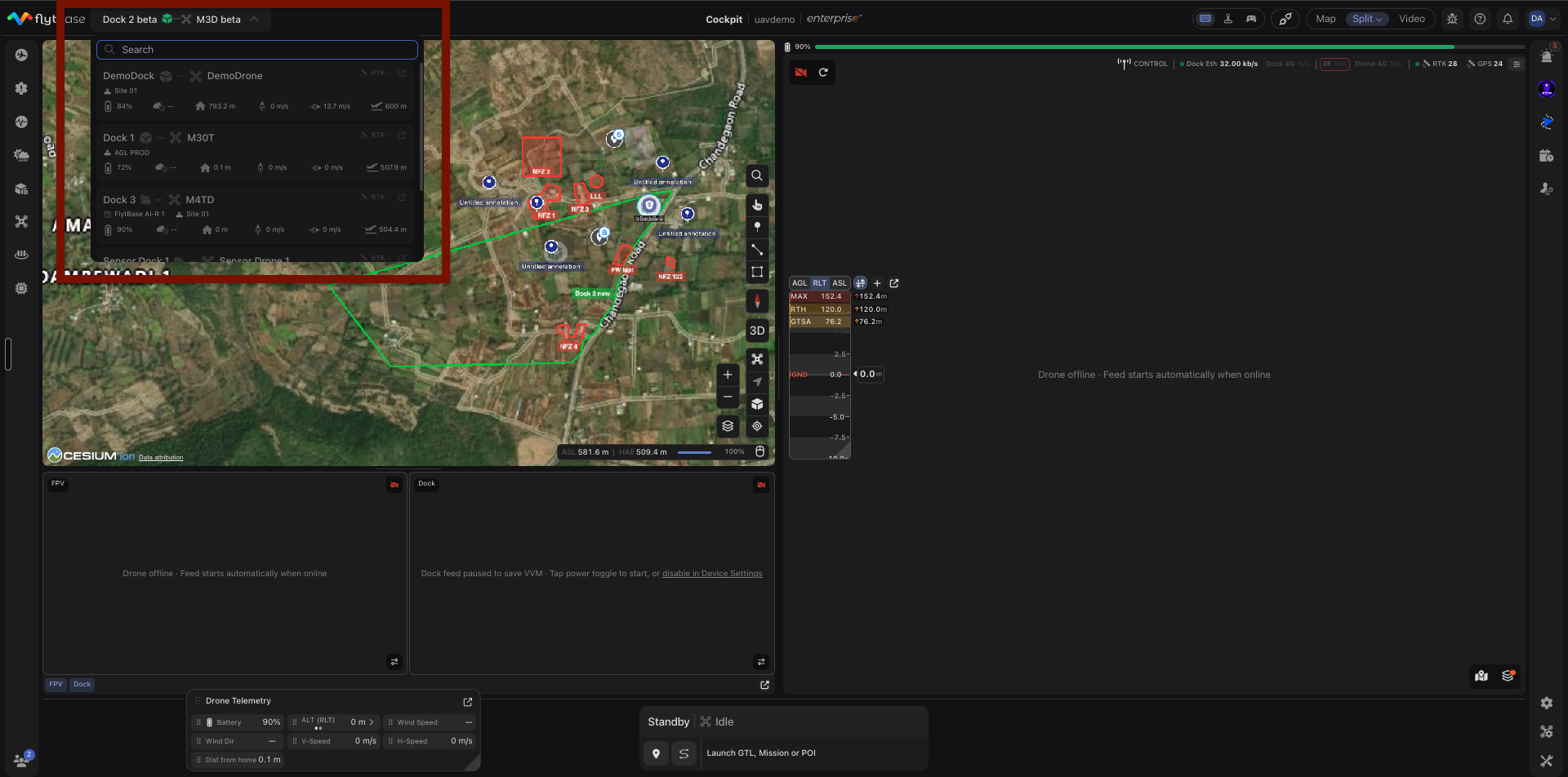
- Navigate to the drone control panel and click on the 'Mission' tab.
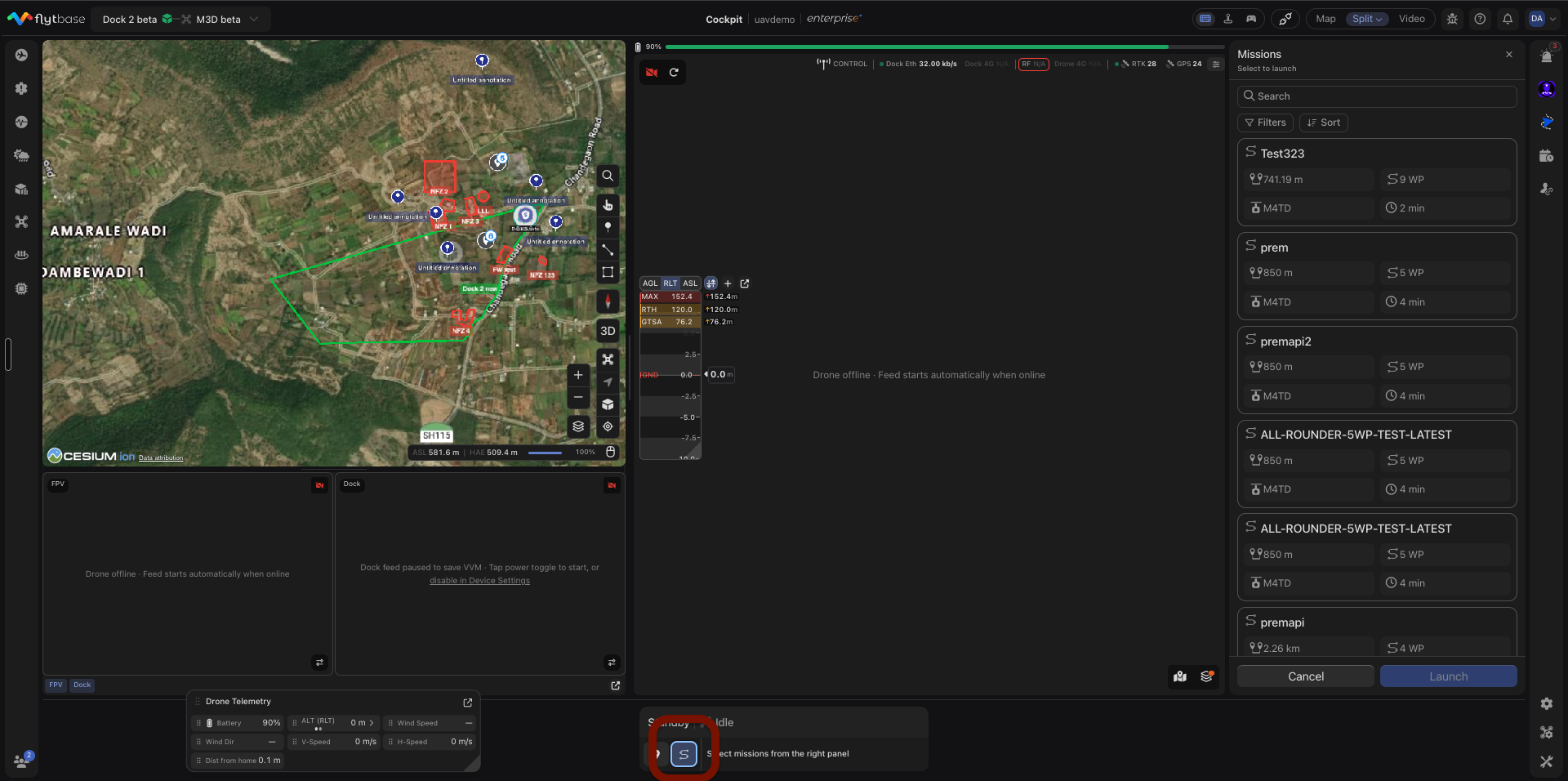
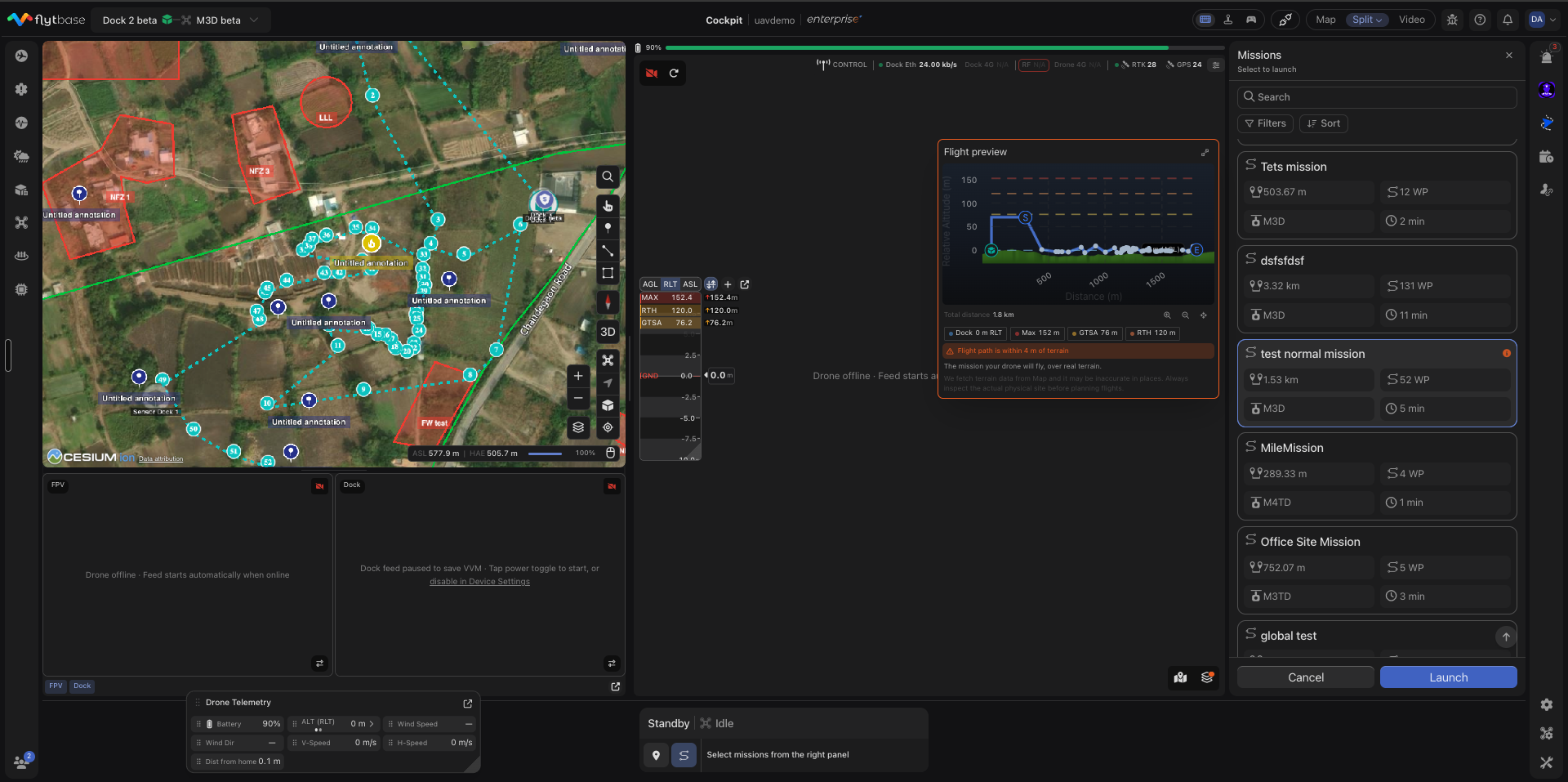
- Select a pre-planned mission and then click "Launch".
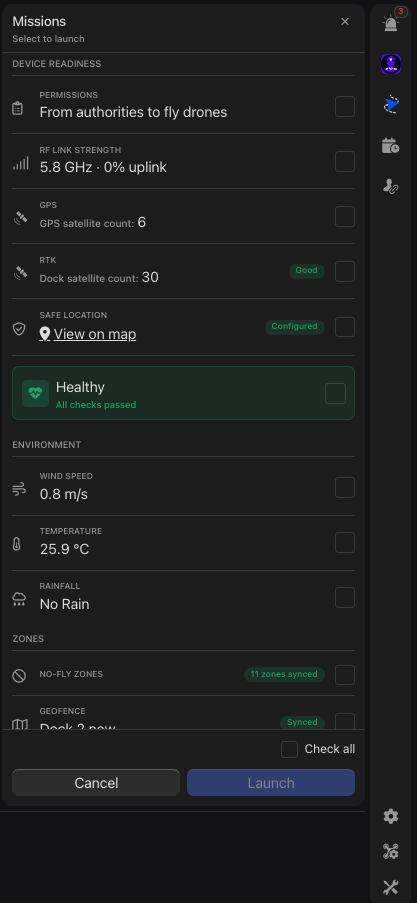
- Ensure you check all the safety checklist parameters.
To Fly Your First Mission Navigate to
Was this helpful?