
Site Management
Learn how to configure a site and give members in your organization selective access for the registered devices for each site.
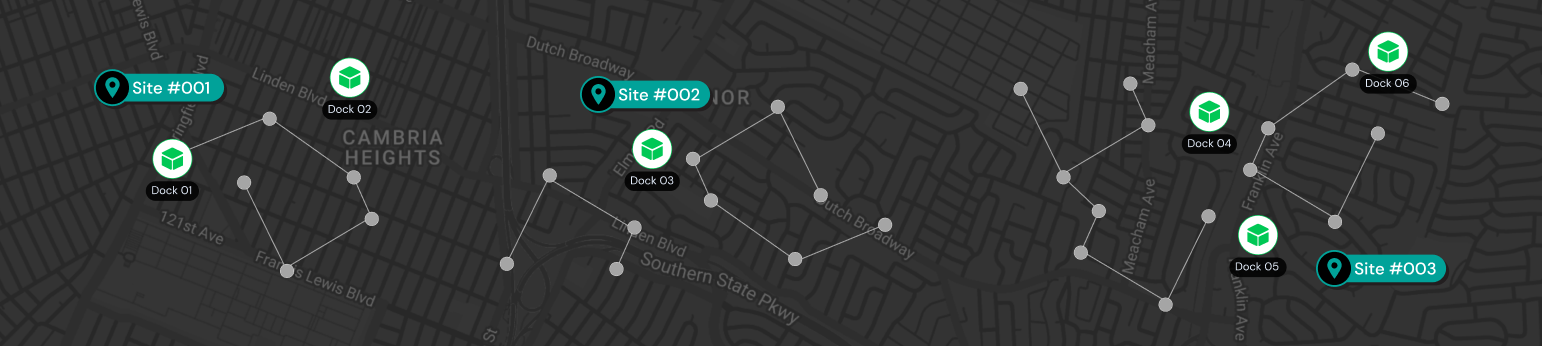
A Site is a logical grouping of Members, Devices, and Missions within FlytBase. Sites let you organize operations into self-contained units, typically by physical location, business unit, or project, so each team works only with the resources relevant to them.
Each Site is pinned to a geographical marker, focusing Members on operations within a defined area.
Members(Users assigned to the site) can only perform operations on the sites they belong to. This keeps each team's work isolated and prevents accidental changes to resources outside their scope.
Configuring a Site with the desired Devices, Missions, and Members is a mandatory process for flight operations.
Who can manage Sites
| Role | View Sites | Create / edit / delete Sites |
|---|---|---|
| Owner | Yes | Yes |
| Admin | Yes | Yes |
| User | Yes (only the sites they belong to) | No |
If a User isn't on any Site, they won't see any Site-scoped data in Operations. Owners and Admins always see every Site, regardless of which Sites they're listed on.
Why use Sites
- Scoped access — Members(Users assigned to the site) in an organization can only perform operations on the sites they are part of. This keeps each team's work isolated and prevents accidental changes to resources outside their scope.
- Geographical focus — A Site's geographical marker anchors the team's operations to a defined area, making it easier to plan and monitor Missions within that region.
- Cleaner organization — Grouping Devices, Members, and Missions per Site reduces clutter and makes large Fleets easier to manage.
The Default Site
When your organization is first created, FlytBase automatically adds one Site named Site 01:
- The organization Owner is its only Member.
- It has no location set, so it's marked with a caution icon on the Sites list until an Admin or Owner edits it and marks a point on the map.
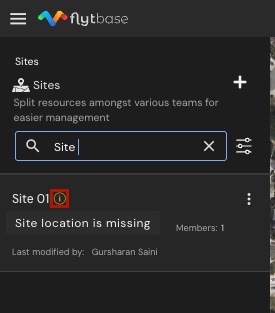
- You can rename it, change its location, or assign new Members and devices at any time.
- You can't delete it while it's your only Site — your organization must always have at least one Site.
Navigating to Sites
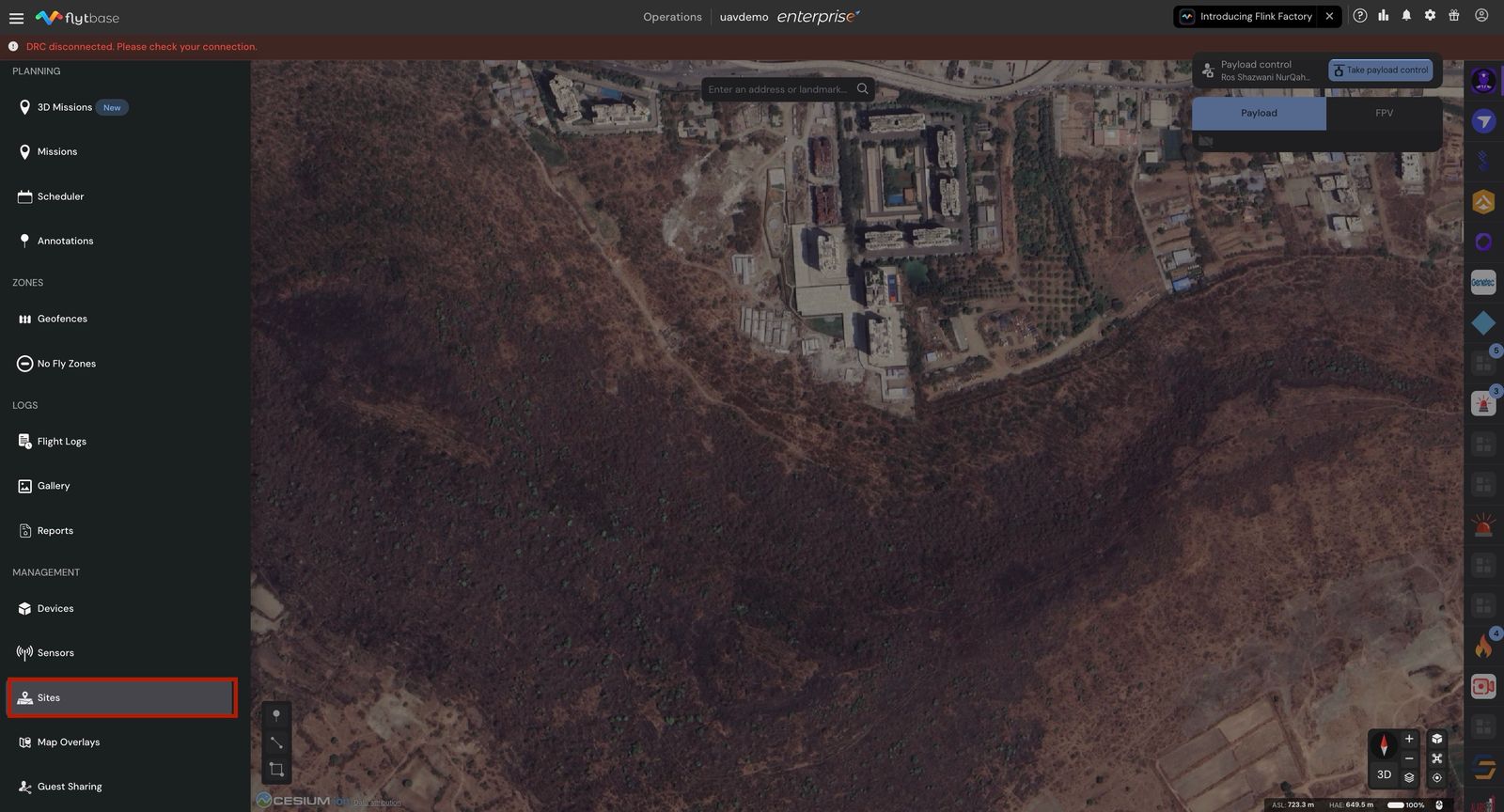
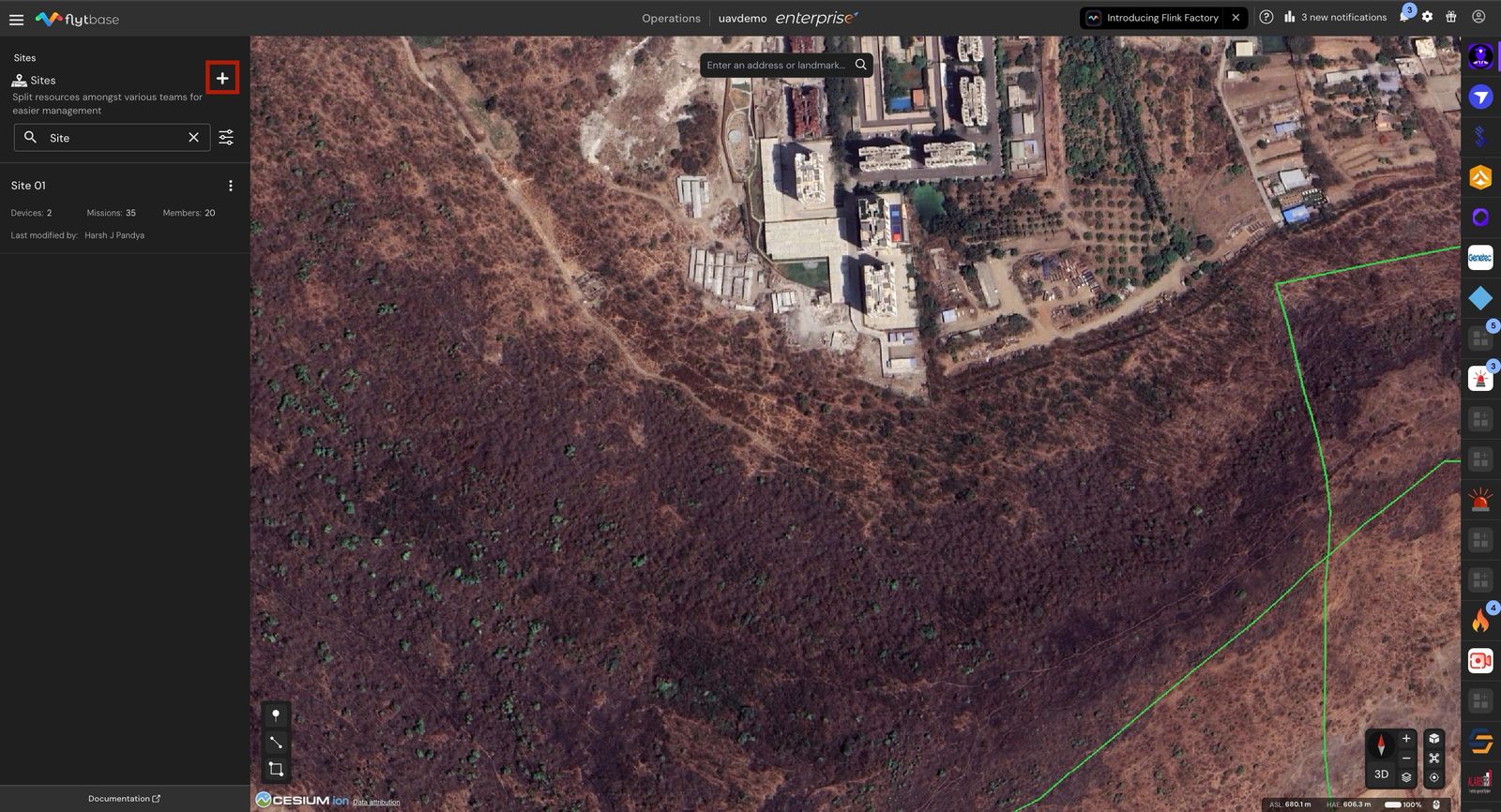
Sites live in the Sites tab of the Operations app's navigation drawer. The list shows every site you have access to, with a quick view of how many devices, missions, and members are on each one, and who last modified it.
- Navigate to the 'Sites' tab inside the 'Navigation Drawer'.
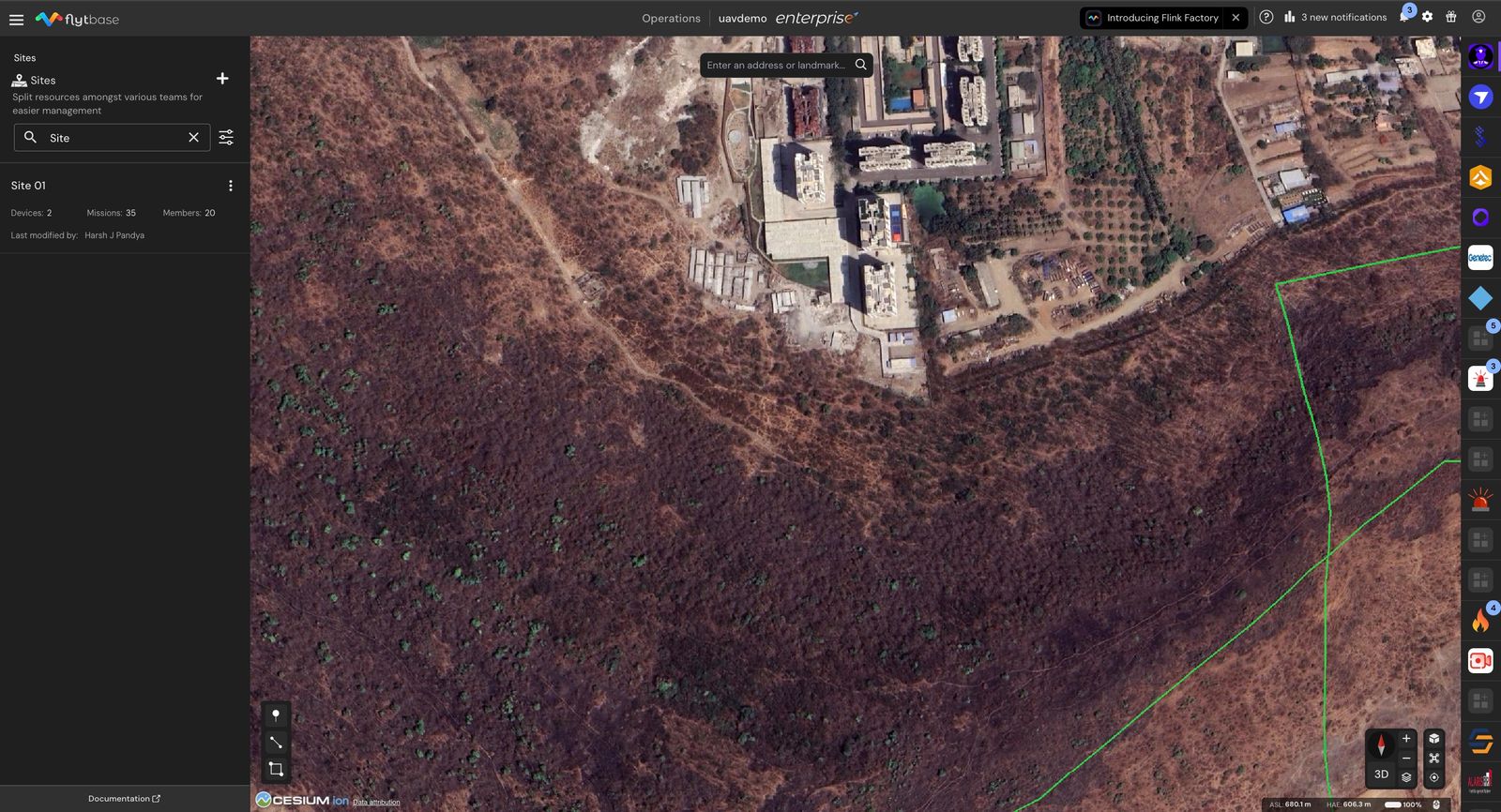
You cannot delete the default site, as an organization must have at least one site to perform operations.
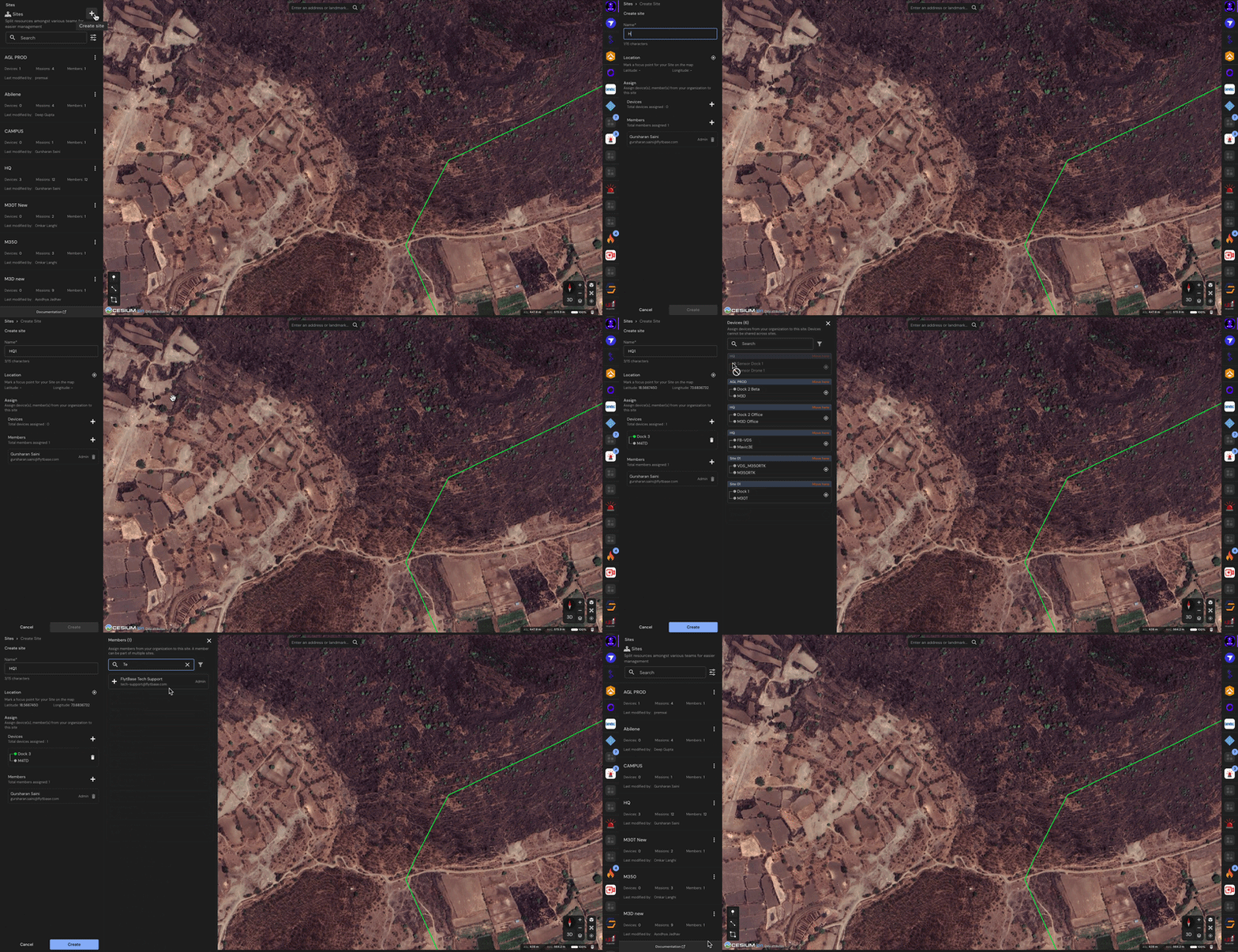
Creating a New Site
- To create a new Site, click on the '' button.
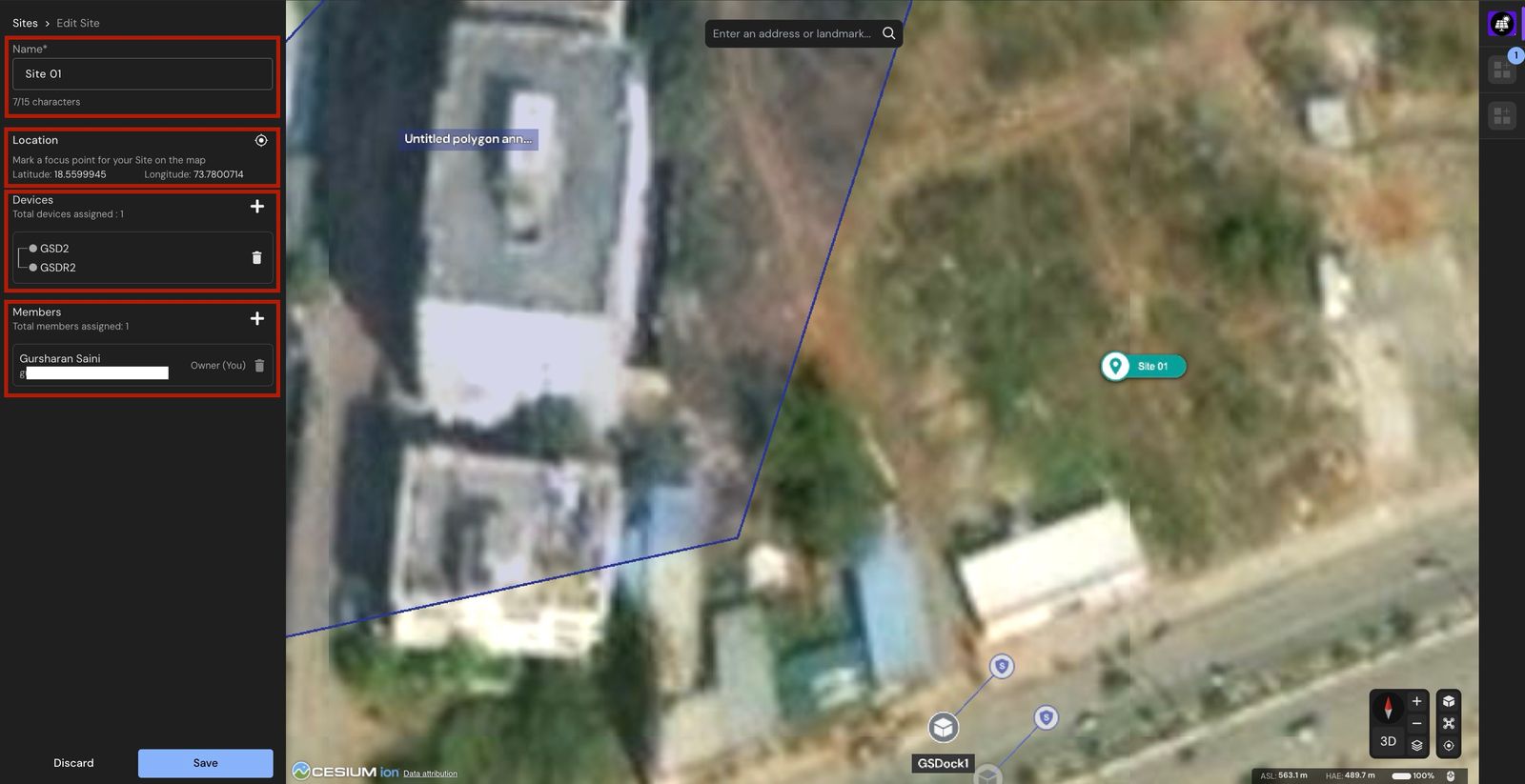
- Refer to the following steps while creating a new 'Site':
- Assign a name for the Site.
- Pan and zoom the map until your Site's location is centered and visible, then left-click on the map to place the marker. This marker anchors the site geographically and is used for mission planning and operational focus, so make sure the map is positioned correctly before you click.
- Add registered devices that need to be assigned to the Site. There is no limit to the number of Devices that can be added to a Site.
Note: Site Members can only operate devices assigned to their particular Site.
- Assign Members to the particular Site.
Members in an organization can only perform operations on those Sites they are part of.
Use a separate Site for each physical location or each fleet you want to manage independently. A drone or dock should never be assigned across Sites.
A 'Device' can only be added to a single Site.
Only Admins and Owners within an organization can Create or Edit a Site on the dashboard.
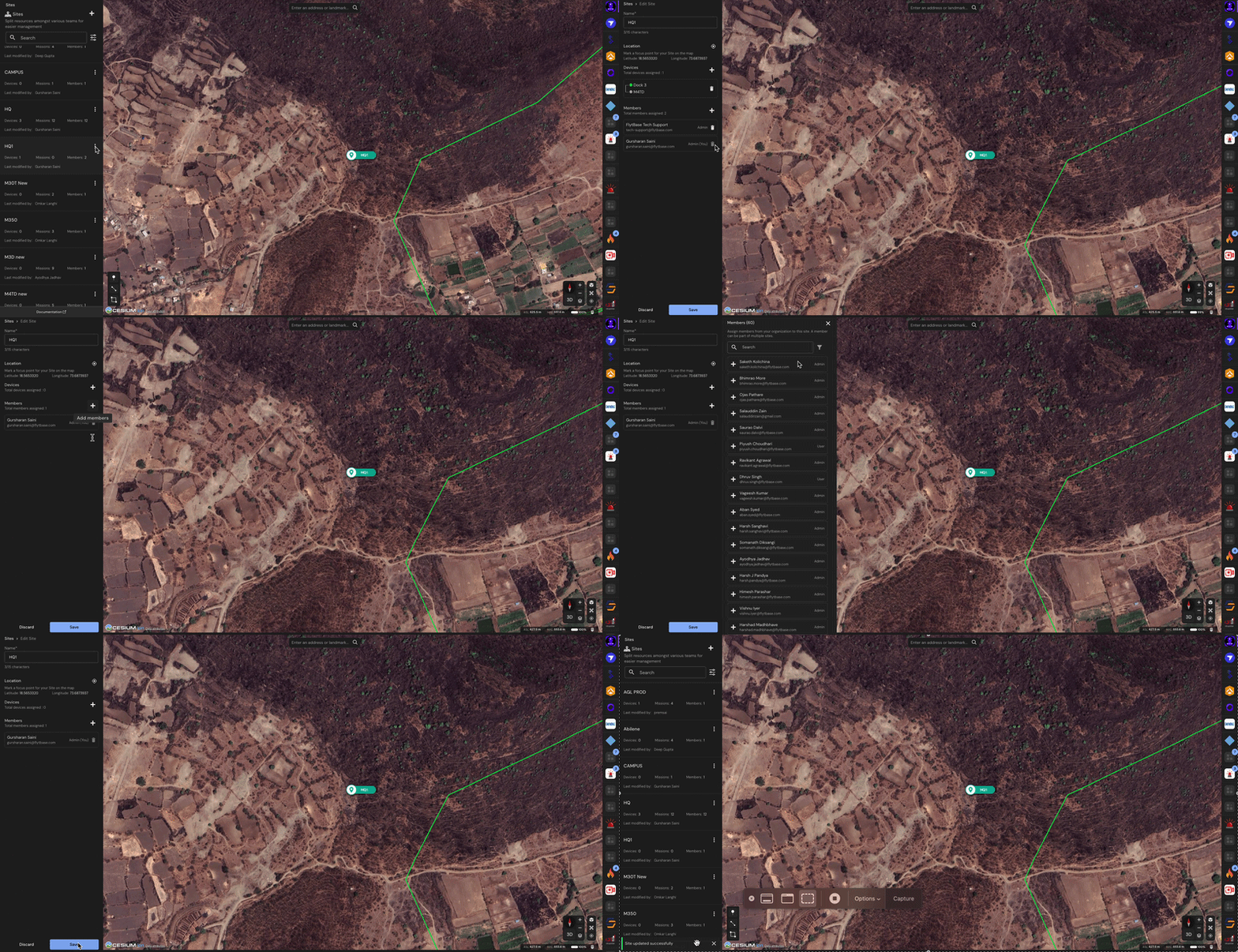
Editing configurations for a Site
- Left-click on the icon for a particular Site and then select the 'Edit' option.
- Easily modify configurations for a particular Site, such as Location, assigned Devices, or Members.
Assigning Missions for a Site
- To assign Missions to a particular Site, refer to the following documentation:
Best Practices
- Create Sites for different drone and dock fleets registered on the dashboard, where each setup is located at various locations.
- Assign Members to specific Sites to ensure a seamless Fleet management experience.
- Ensure that every new device has been assigned to a Site.
Was this helpful?