
Mission Scheduler
Schedule drone missions in advance, assign specific drones to time slots, set recurring frequencies, and track mission outcomes with the Mission Scheduler.
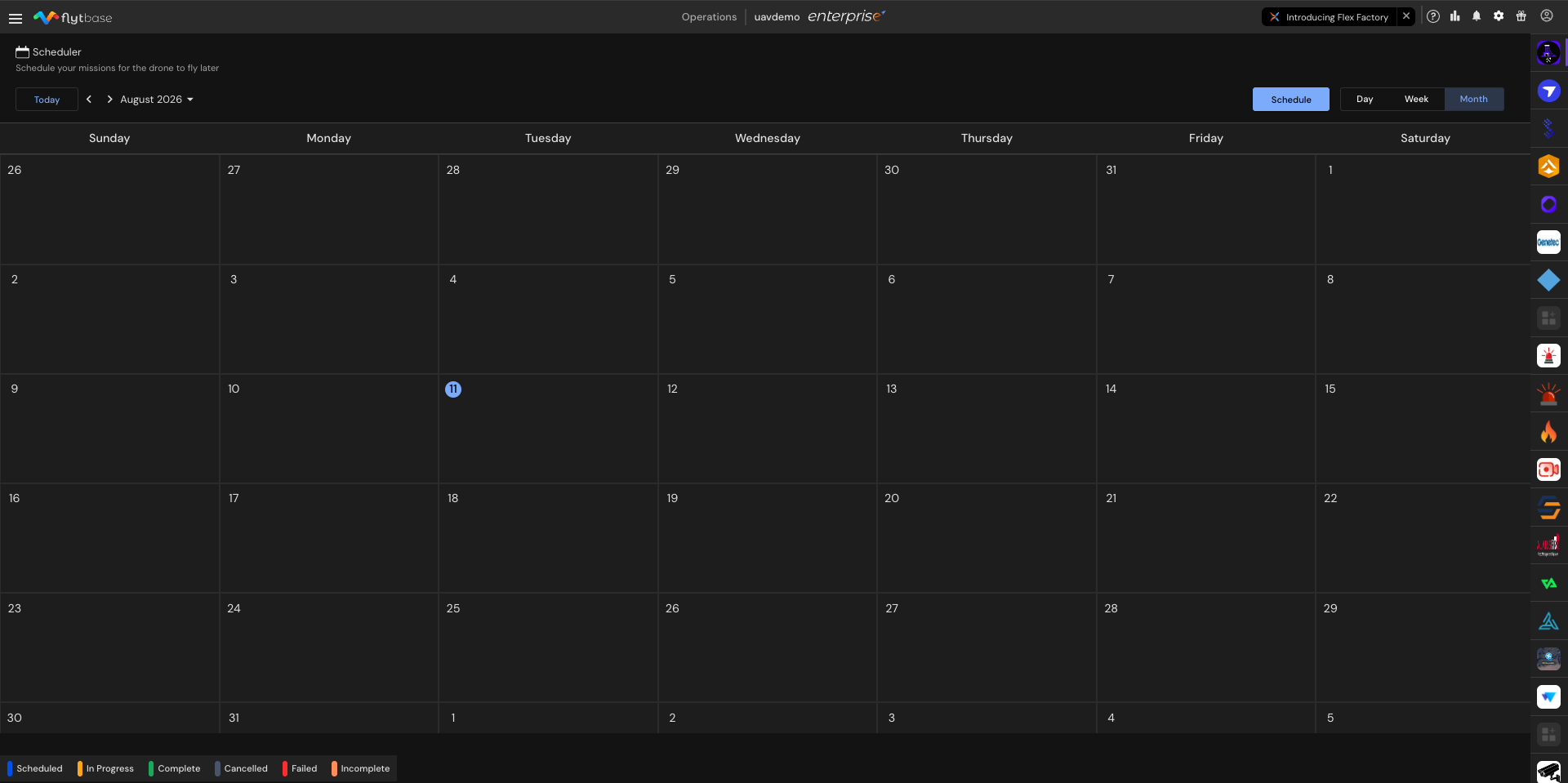
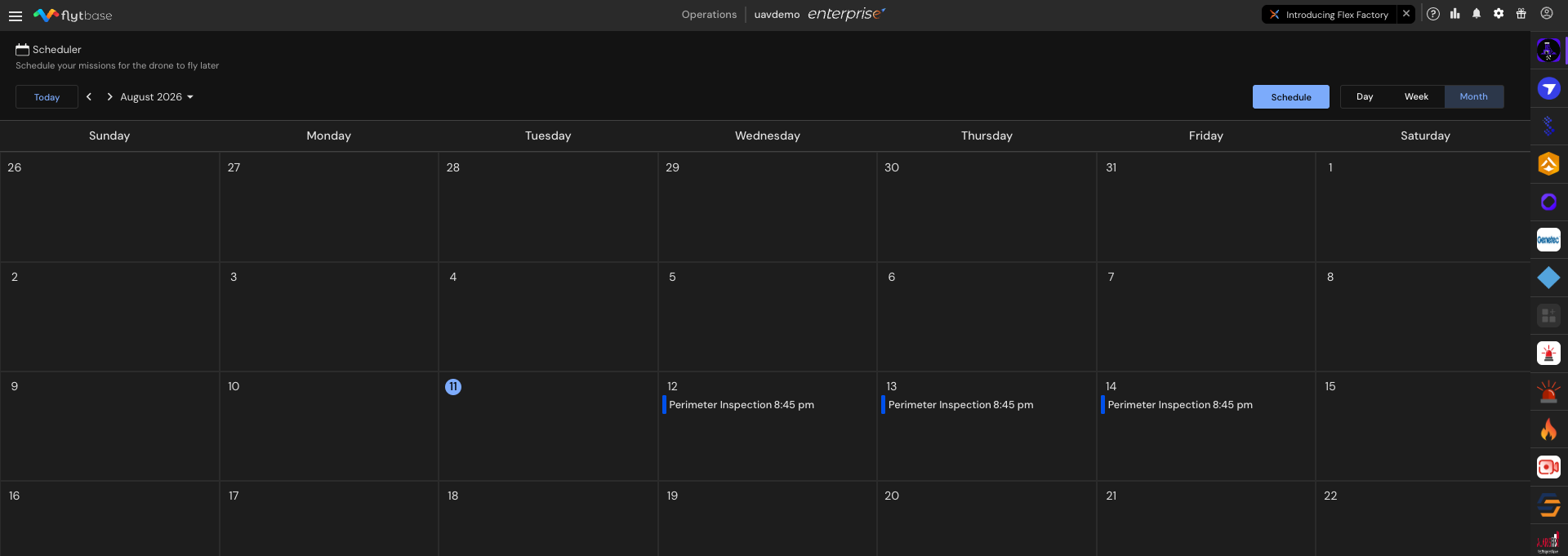
The Mission Scheduler provides a calendar-based interface for planning and managing drone missions across a fleet. Operators can schedule missions in advance, assign specific drones to designated time slots, and configure missions to repeat at regular intervals. The scheduler functions as the fleet's flight agenda - displaying all upcoming, active, and completed missions in a single view.
Each mission card on the calendar indicates the current status of the schedule and provides quick access to details such as the assigned drone, mission type, and execution results. For completed missions, the card links directly to the corresponding flight log. For failed or incomplete missions, the card displays the reason for the outcome.
Calendar Views
The scheduler offers three calendar views to organize and review the flight schedule:
- Day - displays all missions scheduled for a single day
- Week - displays missions across a seven-day period
- Month - displays the full month's schedule at a glance
Use the navigation arrows and the month dropdown on the left side of the scheduler to switch between months and review the schedule for any time period. Click Today to return to the current date.
Scheduling a Mission
There are two ways to create a new schedule:
- Click directly on a date in the calendar to begin scheduling for that day. The date field is pre-filled automatically.
- Click the Schedule button in the top-right corner to open the scheduling form manually. The date must be entered manually in this case.
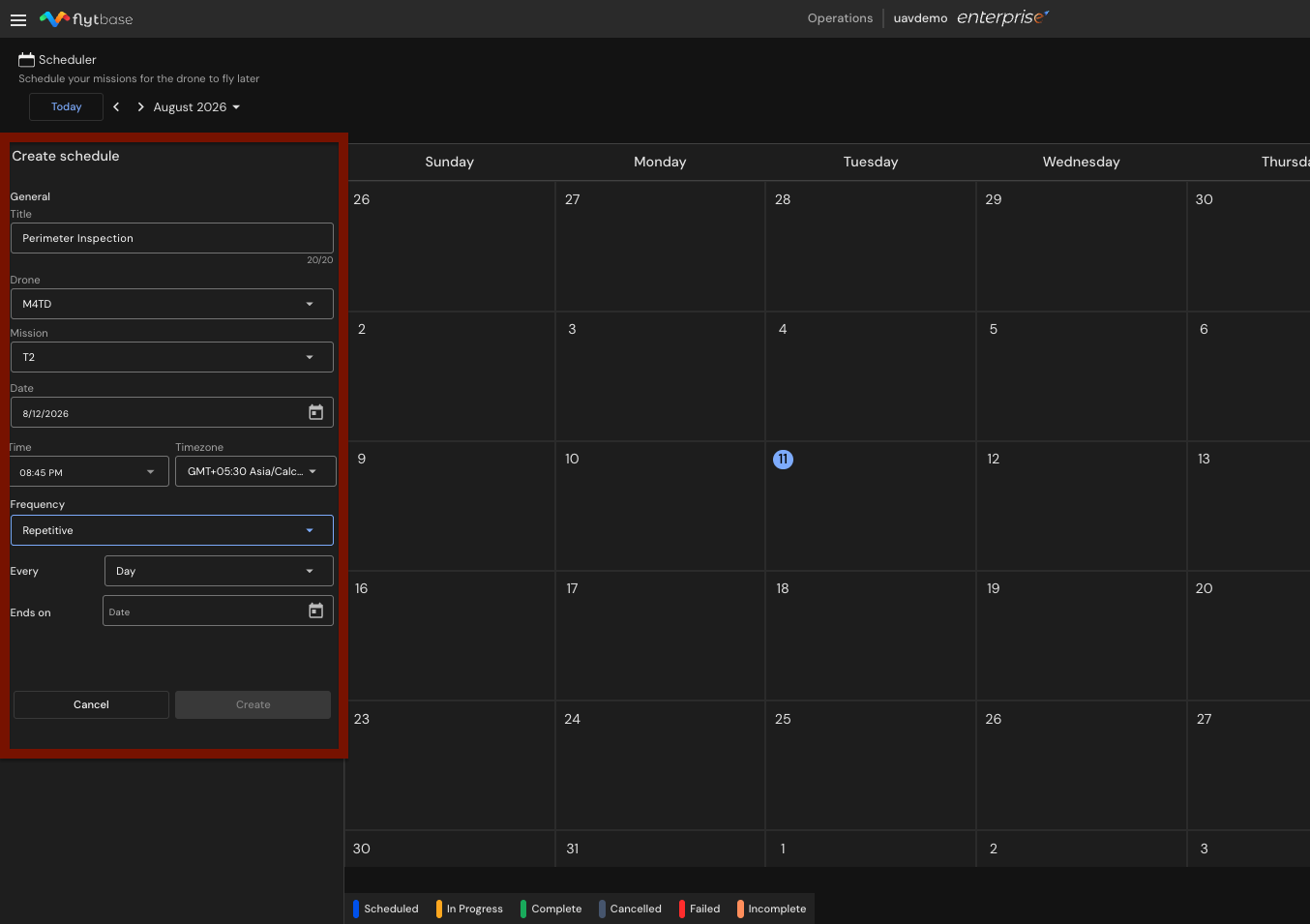
After selecting either option, complete the following fields:
- Enter a title for the schedule (maximum 20 characters).
- Select the drone from the Drone dropdown.
- Select the mission from the Mission dropdown.
- Set the date, if it was not pre-filled from the calendar.
- Set the time at which the mission should execute.
- Set the time zone.
The time zone must match the operator's local time zone. An incorrect time zone setting shifts the scheduled execution time, potentially causing missions to run at unintended times.
- Select the frequency:
- Just Once - the mission runs only at the specified date and time.
- Repetitive - the mission repeats at regular intervals. Select either Day or Week from the Every dropdown, then set an end date in the Ends on field for the recurring schedule.
- Click Create to finalize the schedule.
Managing Scheduled Missions
Viewing Mission Details
Click on any mission card to view the mission details, including the mission name, assigned drone, docking station, and scheduled time.
Editing, Canceling, Duplicating, and Deleting
Click the three-dot menu on a mission card to access the following options:
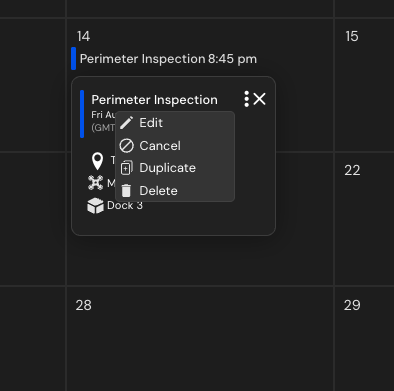
- Edit - modify the schedule parameters
- Cancel - cancel the schedule for that specific day only
- Duplicate - create a copy of the schedule
- Delete - remove the scheduled mission
After canceling a schedule, a Restore option appears in the three-dot menu. Use it to reinstate a canceled schedule without recreating it.
Deleting Recurring Missions
When deleting a mission that is part of a recurring schedule, three deletion options are available:
- Delete This Event - removes only the selected occurrence
- Delete This and Following Events - removes the selected occurrence and all future occurrences in the series
- Delete All Events - removes every occurrence in the recurring series
Mission Status Tags
The scheduler uses six color-coded tags to indicate the current state or outcome of each scheduled mission. The status legend is displayed at the bottom of the calendar.
| Tag Color | Status | Description |
|---|---|---|
| Blue | Scheduled | The mission is scheduled for a future date and time. |
| Yellow | In Progress | The drone has picked up the schedule and is currently executing the mission. |
| Green | Complete | The drone successfully completed the scheduled mission. |
| Grey | Cancelled | The mission was manually canceled by an operator. This status is never assigned automatically. |
| Red | Failed | The drone could not take off or execute the mission. Common causes include calibration issues, 4G or network connectivity loss, and failsafe triggers such as high wind speed, low battery, or rainfall. |
| Peach | Incomplete | The drone began executing the mission but could not complete it. This occurs when a failsafe condition - such as increased wind speed, heavy rainfall, or a battery drop - triggers a Return to Home (RTH) mid-flight. The drone returns with the mission only partially completed. |
Was this helpful?