
Copy-Paste Waypoints Across Missions
FlytBase now supports copy-paste of waypoints across missions in the 3D Mission Planner, allowing operators to reuse previously created waypoints including camera actions, gimbal settings, and inspection logic across different missions.
This enables faster mission creation, eliminates repetitive setup work, and allows inspection missions to be assembled from existing waypoint building blocks instead of being recreated from scratch.

The Mission Reuse Problem
Building inspection missions requires careful setup:
• Waypoints must be positioned precisely • Gimbal angles and zoom levels need tuning • Oriented Shoot and AI Spot Check actions must be aligned correctly
For Live Mission Recording, the investment is even higher - real flight time is spent framing shots and capturing waypoints one by one.
Previously, once a mission was created, its waypoints were locked to that mission. When inspection scopes changed, operators had limited options:
• Recreate the mission manually • Duplicate a mission and delete unwanted waypoints • Record an entirely new Live Mission Recording session
This became especially inefficient when assets were recorded across multiple missions. Executing those missions required repeated launch-fly-return cycles, wasting battery and time on redundant transit instead of inspection.
Waypoints can now be copied from one mission and pasted into another, turning existing missions into reusable waypoint libraries.
Copy-Paste Waypoints
Waypoints can now be copied from one mission and pasted into another, turning existing missions into reusable waypoint libraries.
Everything associated with a waypoint can be transferred:
• Position and altitude • Gimbal angles and camera zoom • Waypoint actions • Oriented Shoot configuration • AI Spot Check reference images
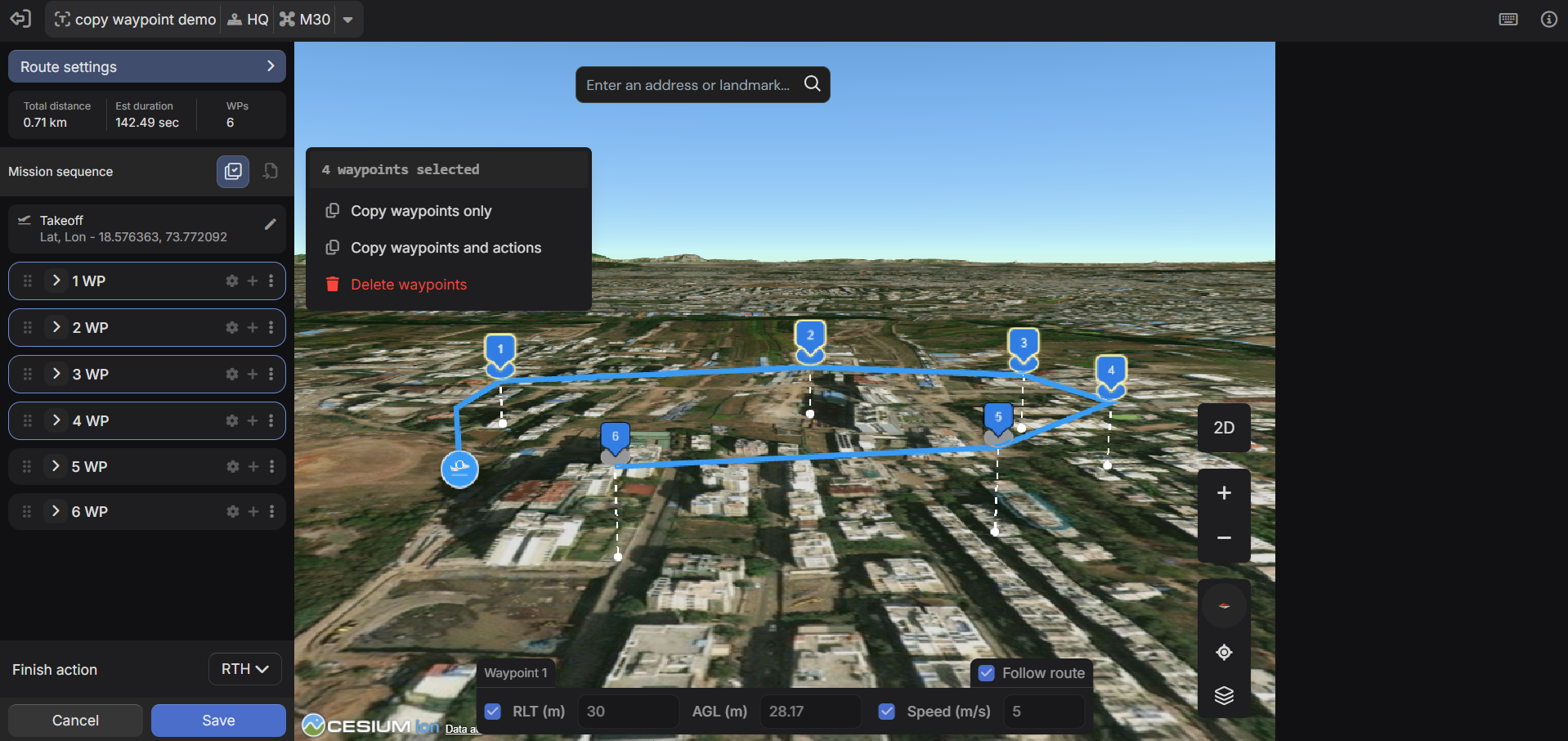
Waypoints are copied without modifying the source mission, allowing recording missions to remain intact while execution missions are consolidated.
Two Copy Modes
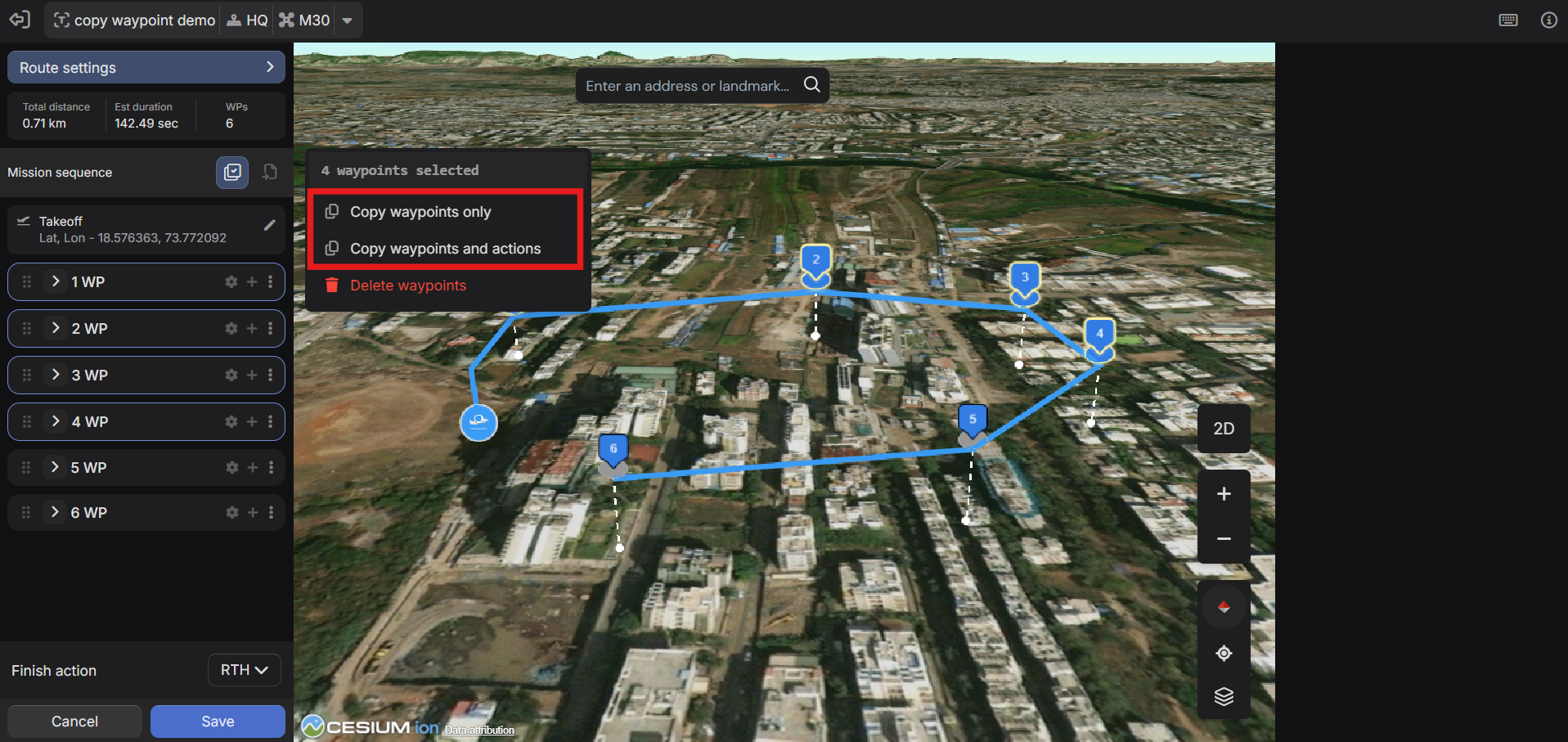
Two copy options are available depending on the use case:
Copy waypoints and actions Preserves full waypoint configuration, including actions, gimbal settings, and camera parameters. Recommended when reusing inspection or Live Mission Recording waypoints.
Copy waypoints only Transfers waypoint positions without actions. Useful when reusing a flight path for a different operational purpose.
Copying Waypoints: Step by Step
1. Open the source mission
Open the mission containing the waypoints you want to reuse in the 3D Mission Planner.
2. Enter multi-select mode
Enable waypoint multi-select from the toolbar or press Ctrl/Cmd + M.
3. Select waypoints
• Ctrl/Cmd + Click - select individual waypoints • Shift + Click - select a range • Ctrl/Cmd + A - select all • Escape - clear selection
4. Copy
Click any selected waypoint and choose either:
• Copy waypoints only, or • Copy waypoints and actions
5. Switch to the destination mission
Open an existing mission or create a new one in a separate tab. Select the waypoint after which the copied waypoints should be inserted.
6. Import
Click Import Waypoints in the toolbar and select Copied Waypoints.
The copied waypoints are inserted immediately after the selected waypoint, maintaining their original order. All actions and camera configurations are preserved if included during copy.
Note: If the source and destination missions use incompatible hardware, validation errors will be raised.
Why This Changes Mission Planning
Consolidating Live Mission Recording Sessions
Live Mission Recording is time-intensive to create but fast to execute. When recordings are split across multiple missions, execution becomes inefficient due to repeated launch and transit cycles.
Copy-paste allows operators to:
• Combine waypoints from multiple recording missions • Execute all inspections in a single flight • Reduce redundant dock-to-site transit
Recording missions remain untouched and reusable for future workflows.
Mix-and-Match Asset Coverage
Different inspection scenarios require different asset combinations:
• Routine inspections • Post-event assessments • Targeted follow-ups
Instead of rebuilding missions, operators can now pull the required waypoints into a new mission. Missions become modular asset libraries rather than fixed flight plans.
Mission Editing Improvements
Copy-paste is supported by several mission editing enhancements.
Drag-and-Drop Waypoint Reordering
Waypoints can be reordered directly in the waypoint list:
• Drag waypoints to reposition them • Use Alt/Opt + Space, then Arrow Up/Down for keyboard reordering
The flight path updates instantly in the 3D map.

Insert Waypoints in Existing Sequences
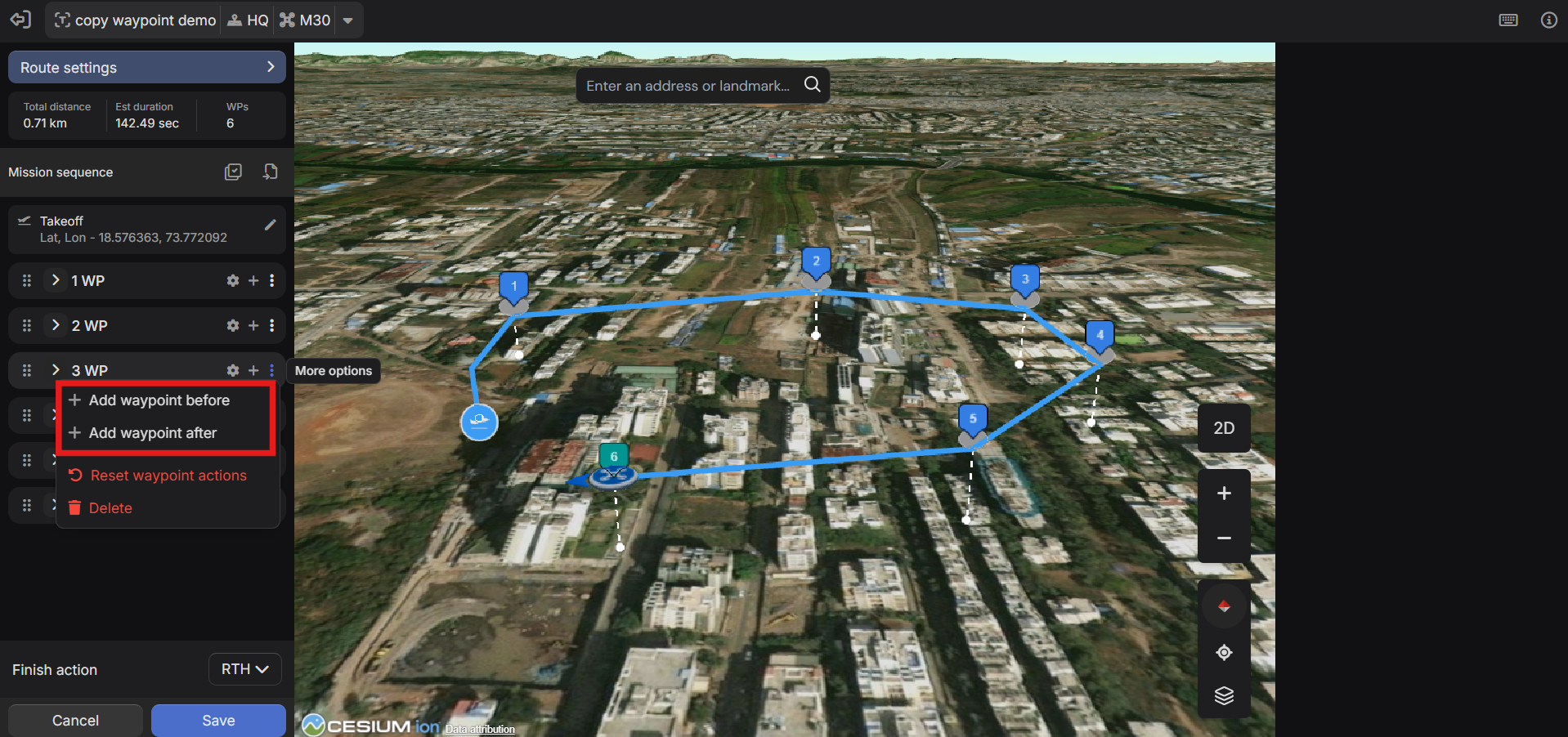
New waypoints can be added before or after any existing waypoint, not just appended at the end. This simplifies mid-mission edits.
Multi-Select and Bulk Delete
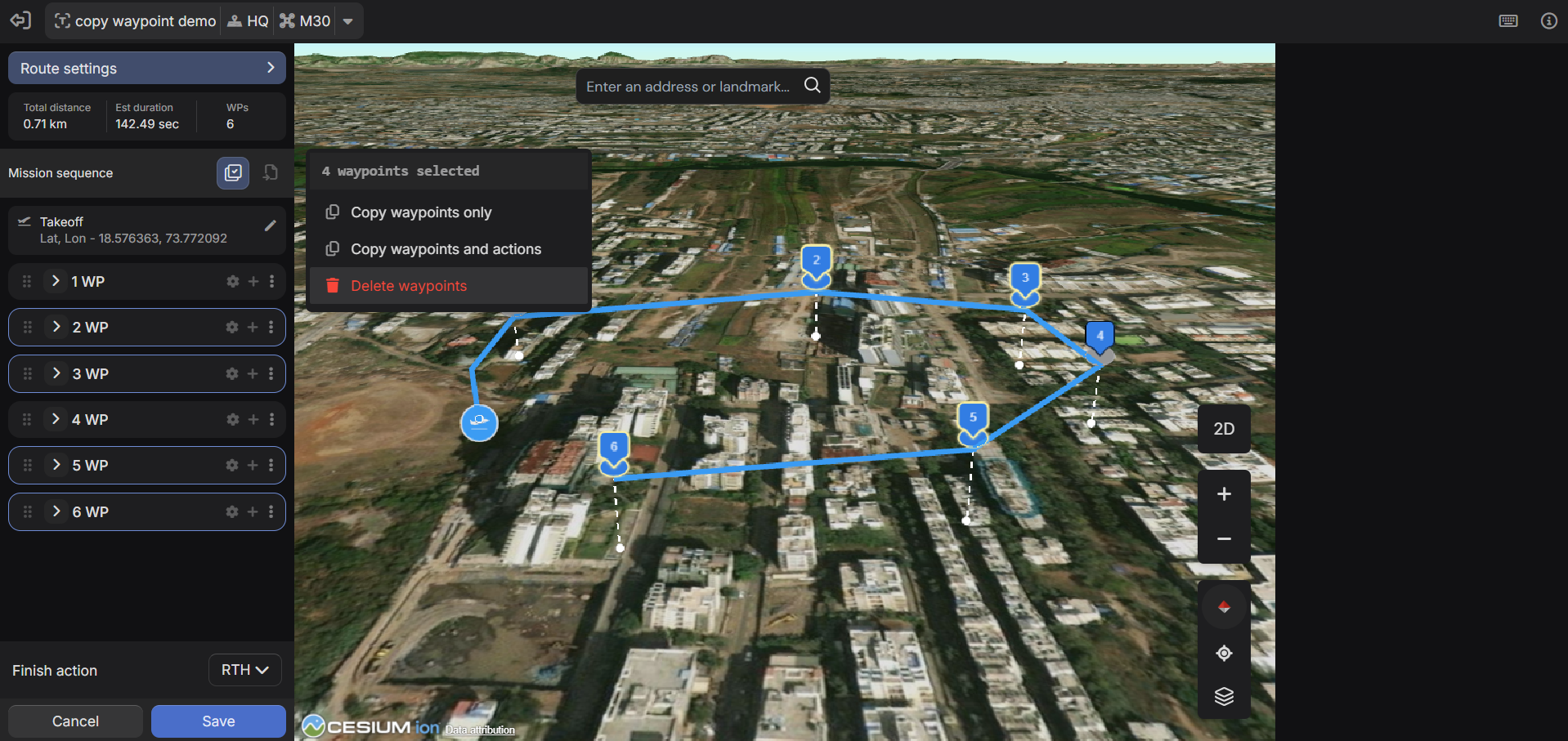
Multiple waypoints can be selected and deleted in a single action, making mission cleanup faster and more precise.
Waypoint Errors and Suggestions
The 3D Mission Planner now validates mission configuration and surfaces issues in a Suggestions and Errors panel.
Examples include:
• Stop recording without a corresponding start action • Invalid or conflicting waypoint configurations
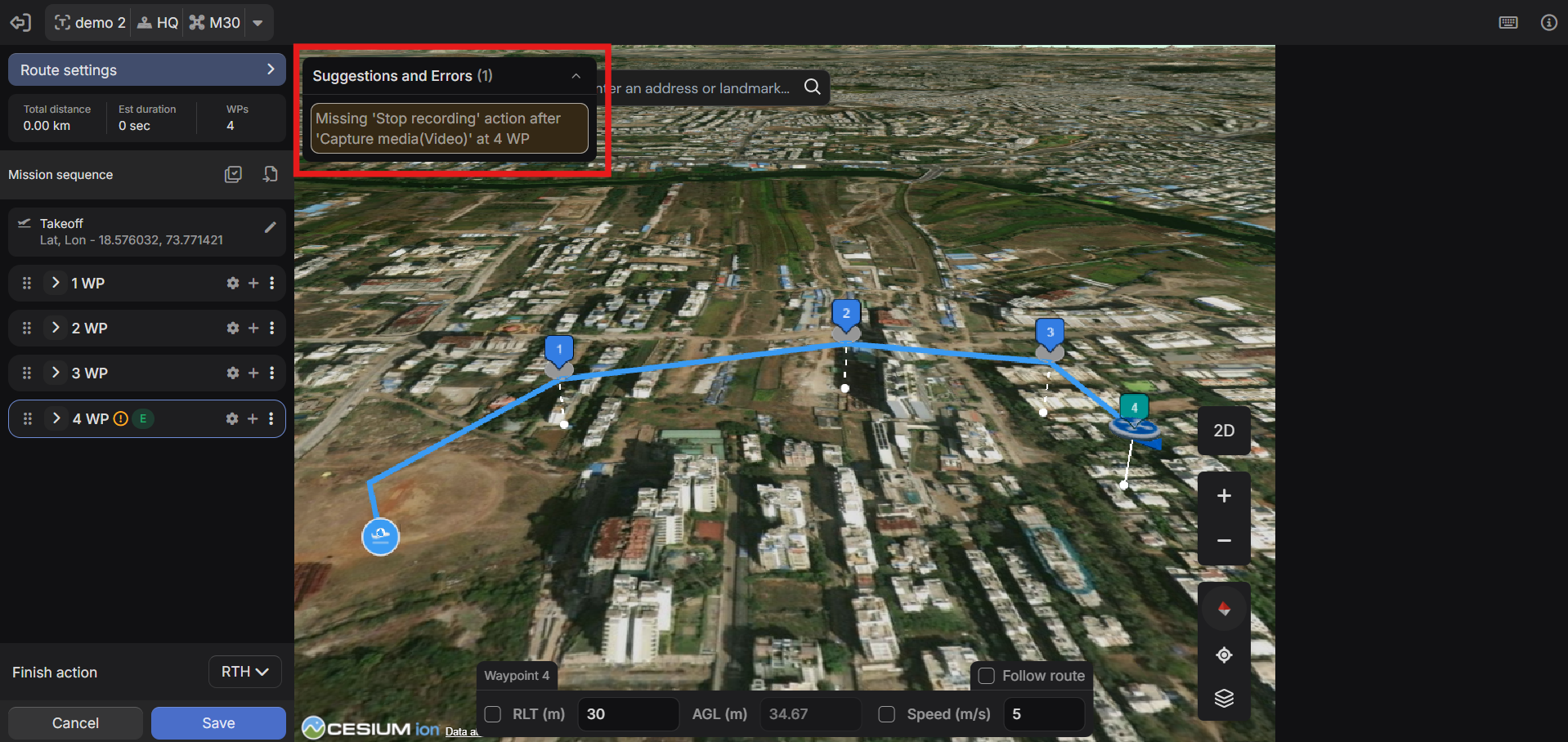
Errors are flagged during planning, before mission execution.
KML Import
Line KML files can now be imported during mission creation.
• KML vertices are converted into waypoints • Imported waypoints can be edited, reordered, and enhanced with actions
This is useful for teams maintaining routes or asset locations in GIS tools or Google Earth.
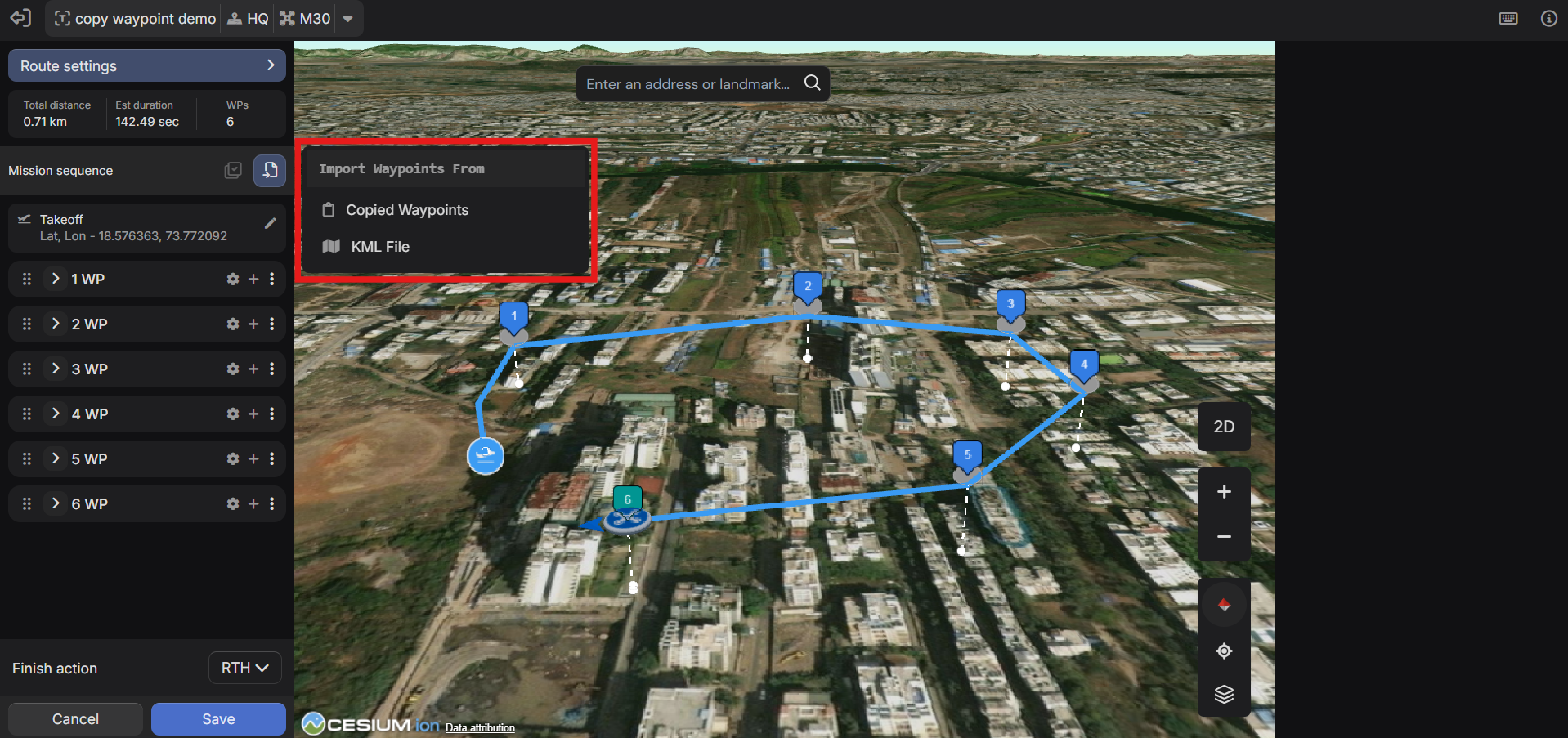
Notes: • Line KMLs only • Polygon KMLs are not supported • No interpolation between vertices
Keyboard Controls
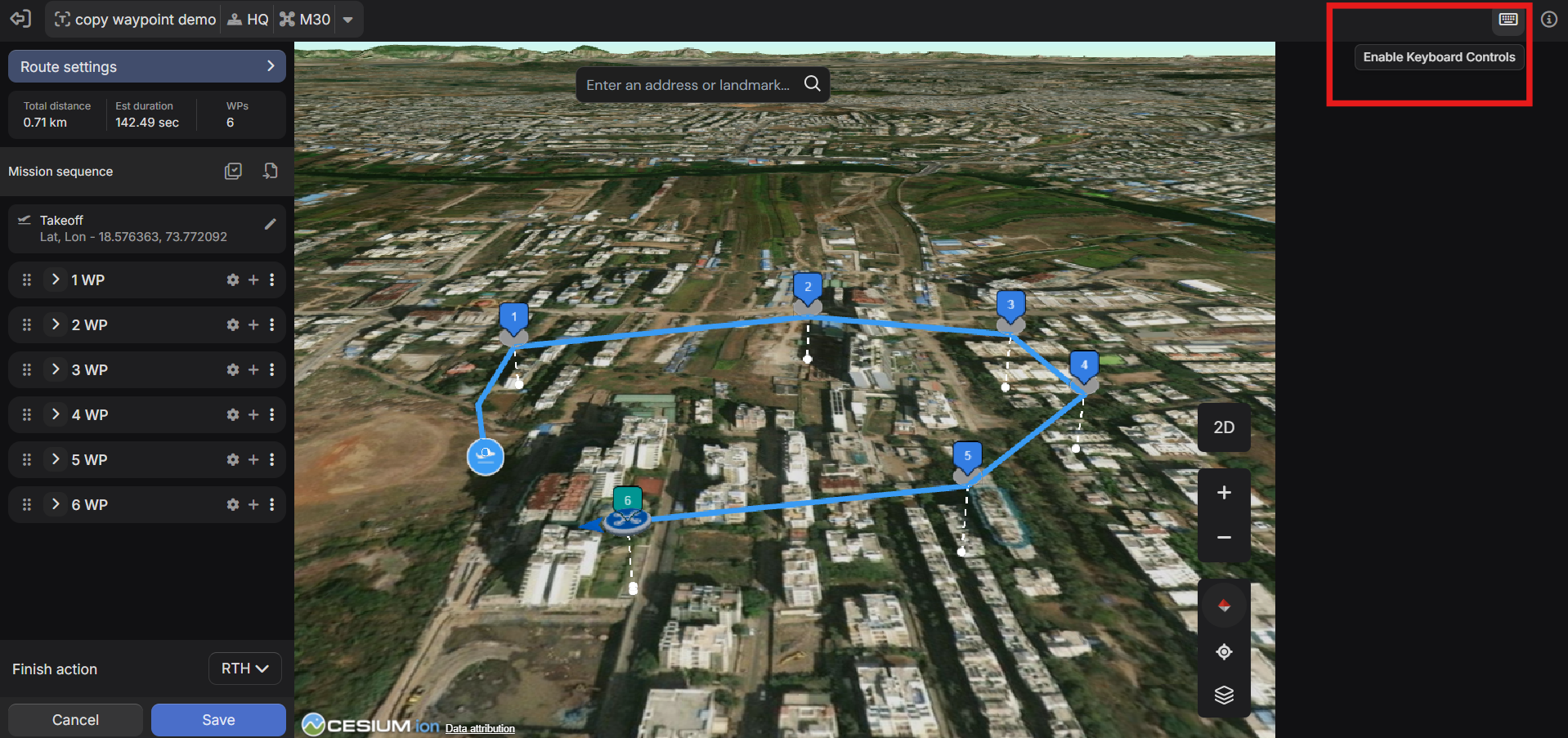
A comprehensive keyboard control system is available for waypoint management.
Keyboard controls are disabled by default and can be enabled from the bottom toolbar. A full keymap reference is accessible via the info panel.
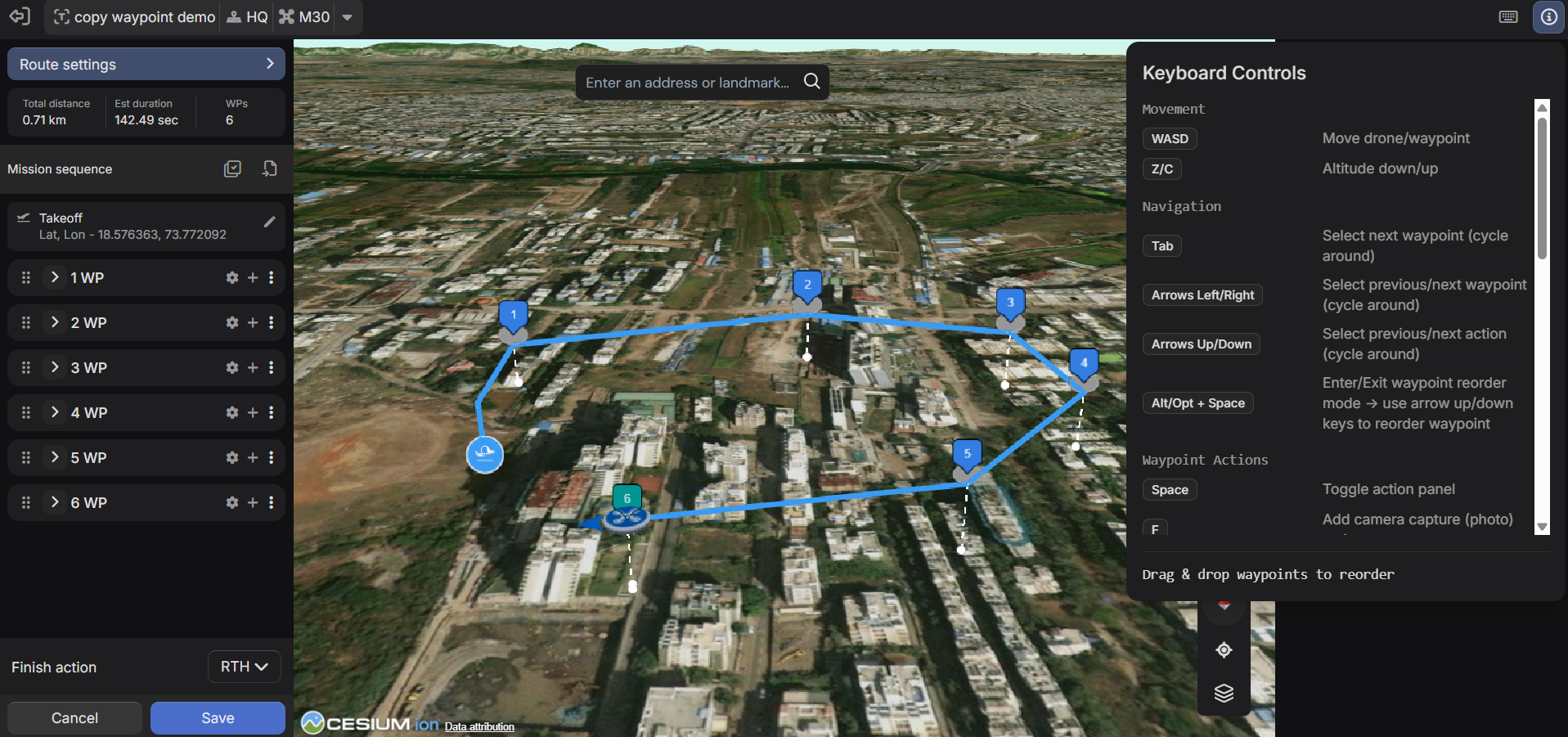
Supported control areas
Movement
- WASD for horizontal movement
- Z/C for altitude adjustment
Navigation
- Tab - cycle waypoints
- Arrow keys - navigate waypoints and actions
- Alt/Opt + Space - reorder mode
Waypoint Actions
- Single-key shortcuts for common actions such as photo capture, video recording, hover, yaw, and zoom
Multi-Select
- Ctrl/Cmd + M - toggle multi-select
- Ctrl/Cmd + Click, Shift + Click - selection
- Ctrl/Cmd + A - select all
- Escape - clear selection
Keyboard controls significantly reduce editing time for complex missions with many waypoints.
Was this helpful?