
Importing Annotations from KML and KMZ
Easily bring existing geospatial data into your FlytBase workspace by importing .kml or .kmz files. This helps unify planning across platforms and avoid redundant work during mission setup.
Why use Imports?
Whether your annotations originate from mission planners, GIS platforms, or previous project templates, importingallows you to:
- Reuse legacy data without manual recreation
- Standardize mission zones and POIs across teams
- Maintain consistency across multi-platform workflows
KML/KMZ import behavior
FlytBase supports .kml and .kmz imports for annotations. For annotation imports, the file should contain supported annotation geometry, such as point data used to create annotation markers on the map.
KML/KMZ files created in GIS tools or third-party mission planners may contain different geometry types, such as paths, polygons, or multiple placemarks. These files may not always import as annotations.
Annotation imports and mission imports are different workflows. KML/KMZ files used for annotations are imported from the Annotations panel, while KML files used for Path Missions must be imported from the supported mission planning workflow.
Unsupported or incorrect KML files
A KML file may fail to import if it contains unsupported geometry or multiple independent shapes.
Examples of unsupported structures include:
- Multiple shapes
- Multiple separate paths
- Multiple polygons
- Multiple placemarks with independent geometries
- Geometry that does not match the selected import workflow
When this happens, FlytBase may reject the file and show an upload error. For example, if multiple shapes are detected, the file is not imported and no annotation or mission geometry is created.
FlytBase does not automatically merge multiple shapes or choose one shape from the file. Make sure the file contains only the geometry supported by the workflow you are using.
How to Import
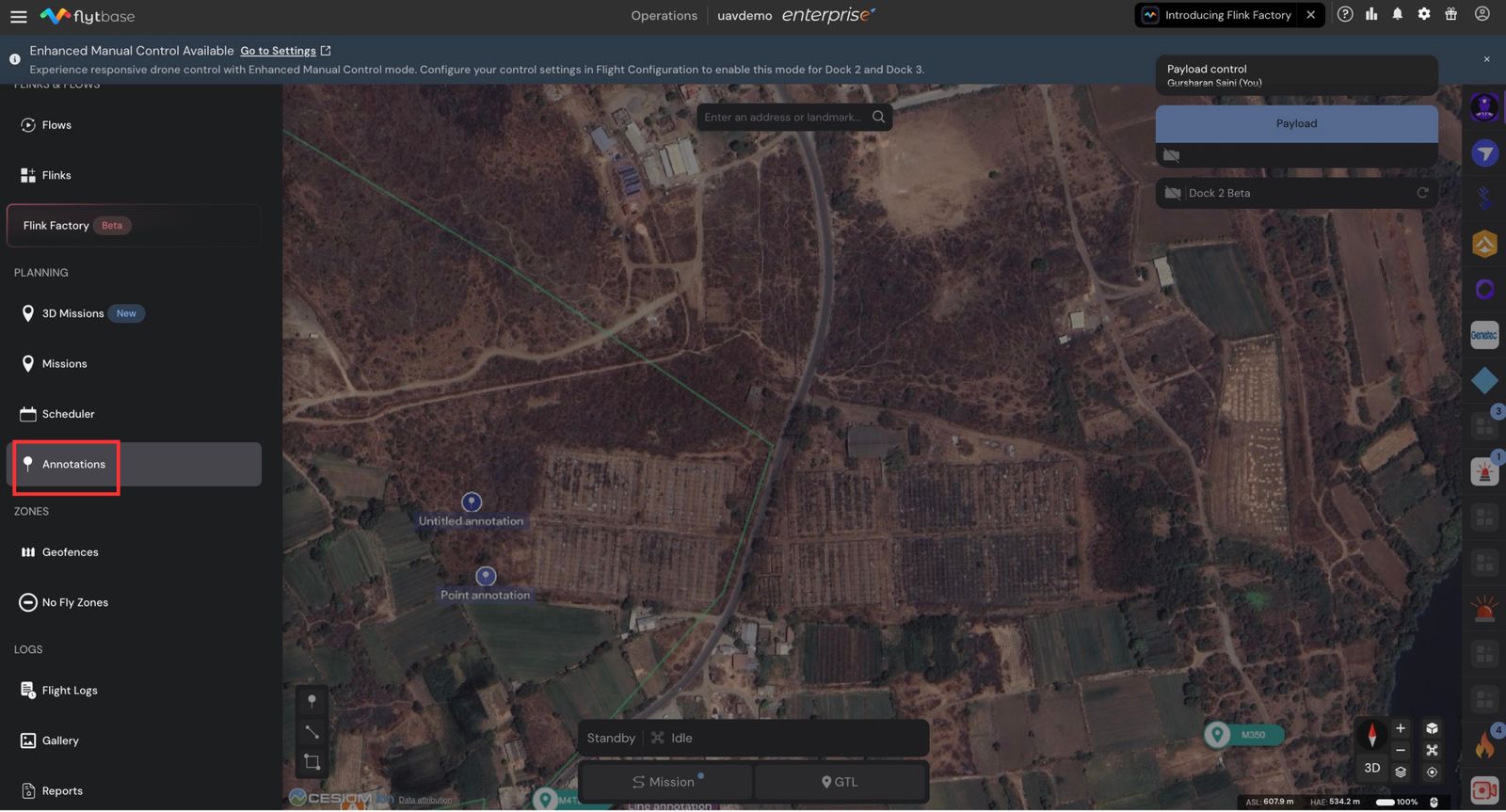
- Navigate to the Annotations panel in your FlytBase dashboard.
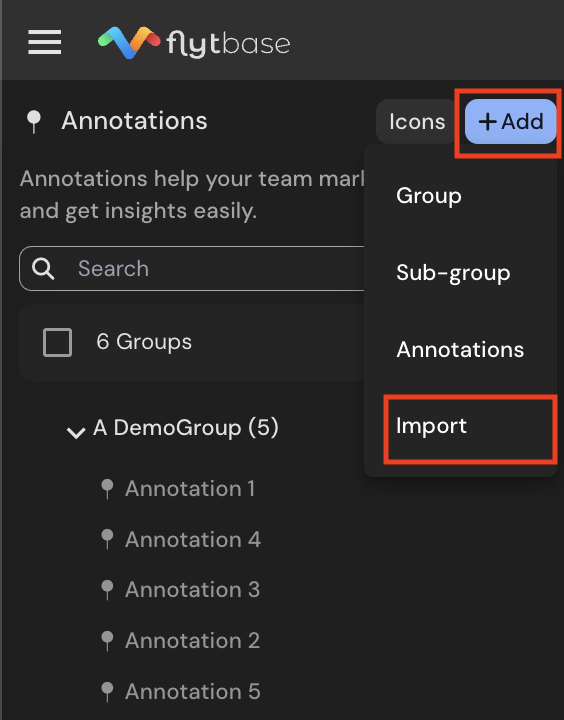
- Click on → Import
- Select a .kml or .kmz file from your system
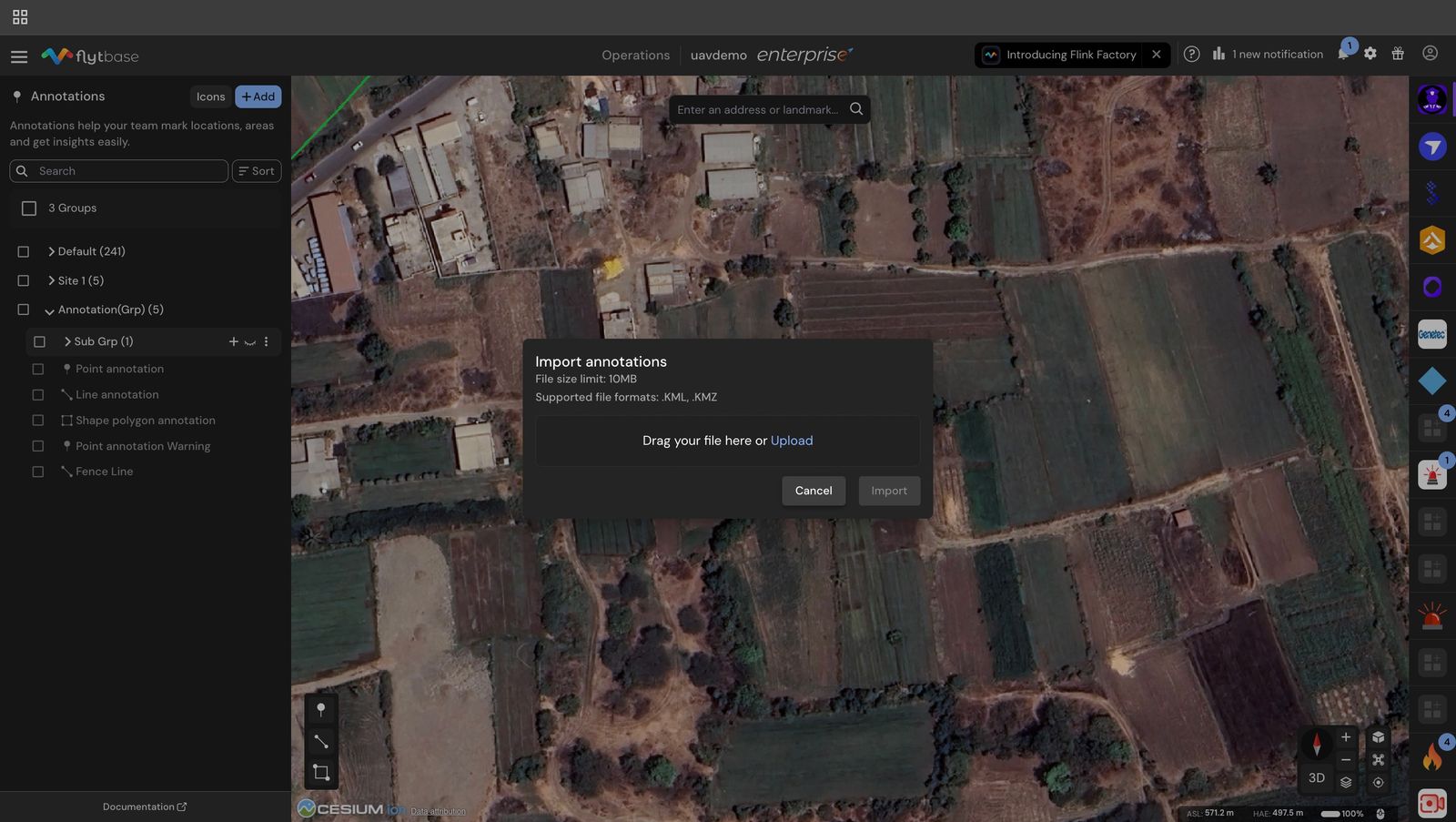
- Once uploaded, the annotations will populate in the panel
Supported Formats
Ensure your files meet the following criteria:
- File types: .kml or .kmz only
- Geometry types: Points (for annotation markers)
Was this helpful?