
Organizing and Customizing Annotations: Groups
Organize annotations with groups and sub-groups, import from KML/KMZ, and customize icons, colors, and altitude for better clarity in large-scale drone operations.
Groups & Sub-Groups
Annotations can now be structured using Groups and Sub-Groups, allowing teams to categorize annotation data by region, mission phase, or type of activity.
- Group: Creates a top-level group.
- Sub-group: Creates a sub-group under the group that is currently selected.
To create a group or sub-group:
- Click Add in the Annotations panel
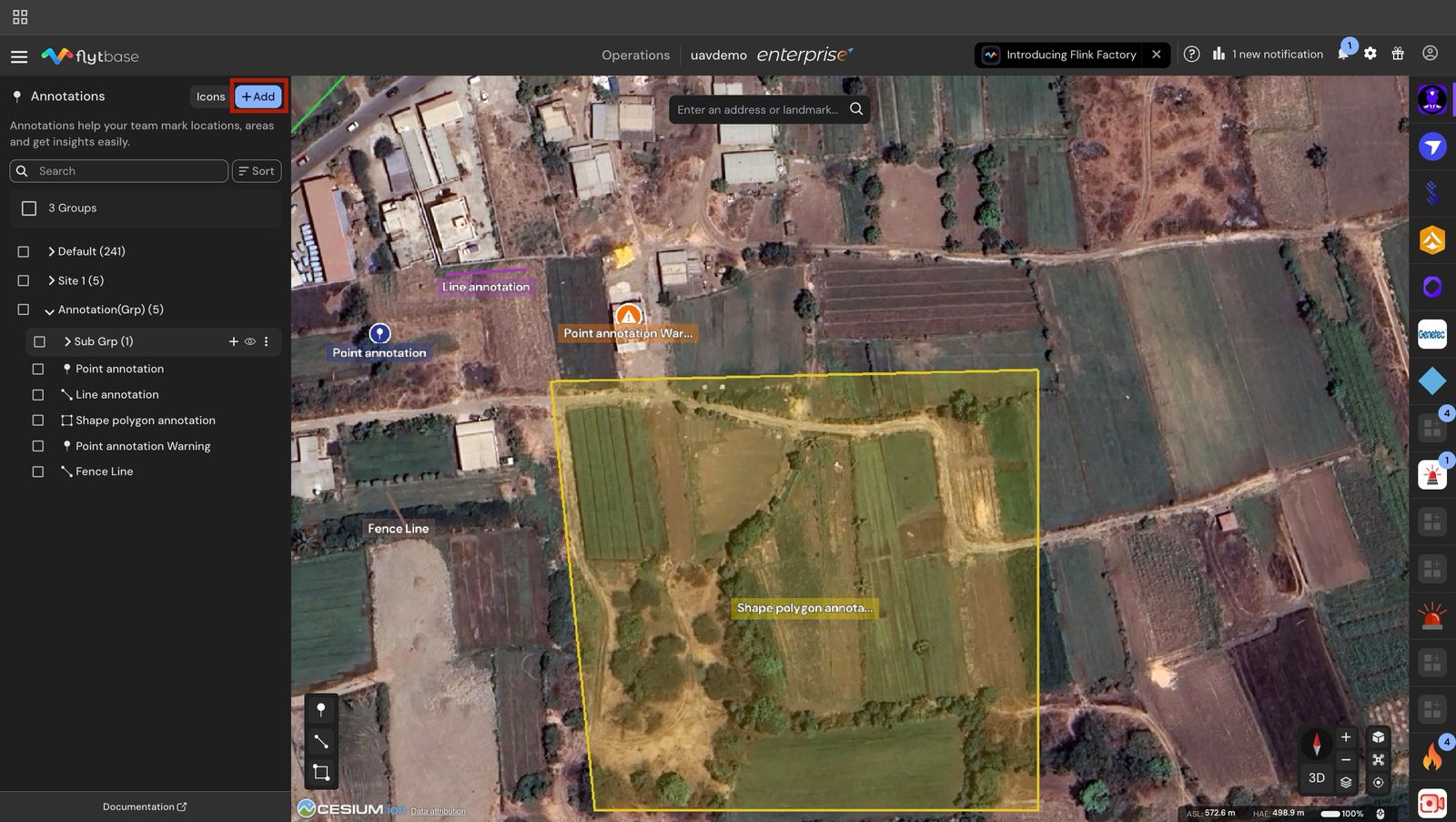
- Select Group or Sub-Group
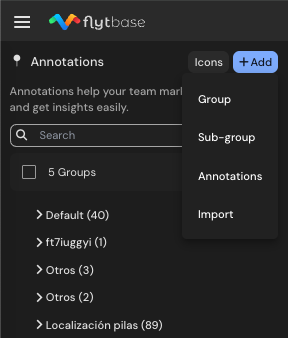
- Enter a name and start organizing your annotations accordingly.
To create a sub-group under a specific group:
- In the Annotations panel, click on the group under which you want to create a sub-group
- Then, click the icon beside it to automatically add a sub-group within that group
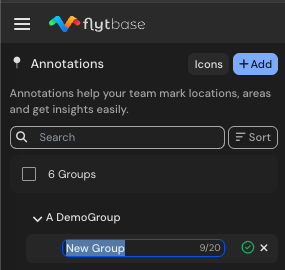
You can rename, delete, or hide groups and sub-groups as needed. Hiding a group hides all annotations under it on the map, making it easier to declutter the interface during active missions.
You can choose to hide individual annotations manually, or quickly hide all annotations at once by toggling visibility on the entire group.
Toggling a group's visibility will show or hide all the annotations under it on the map.
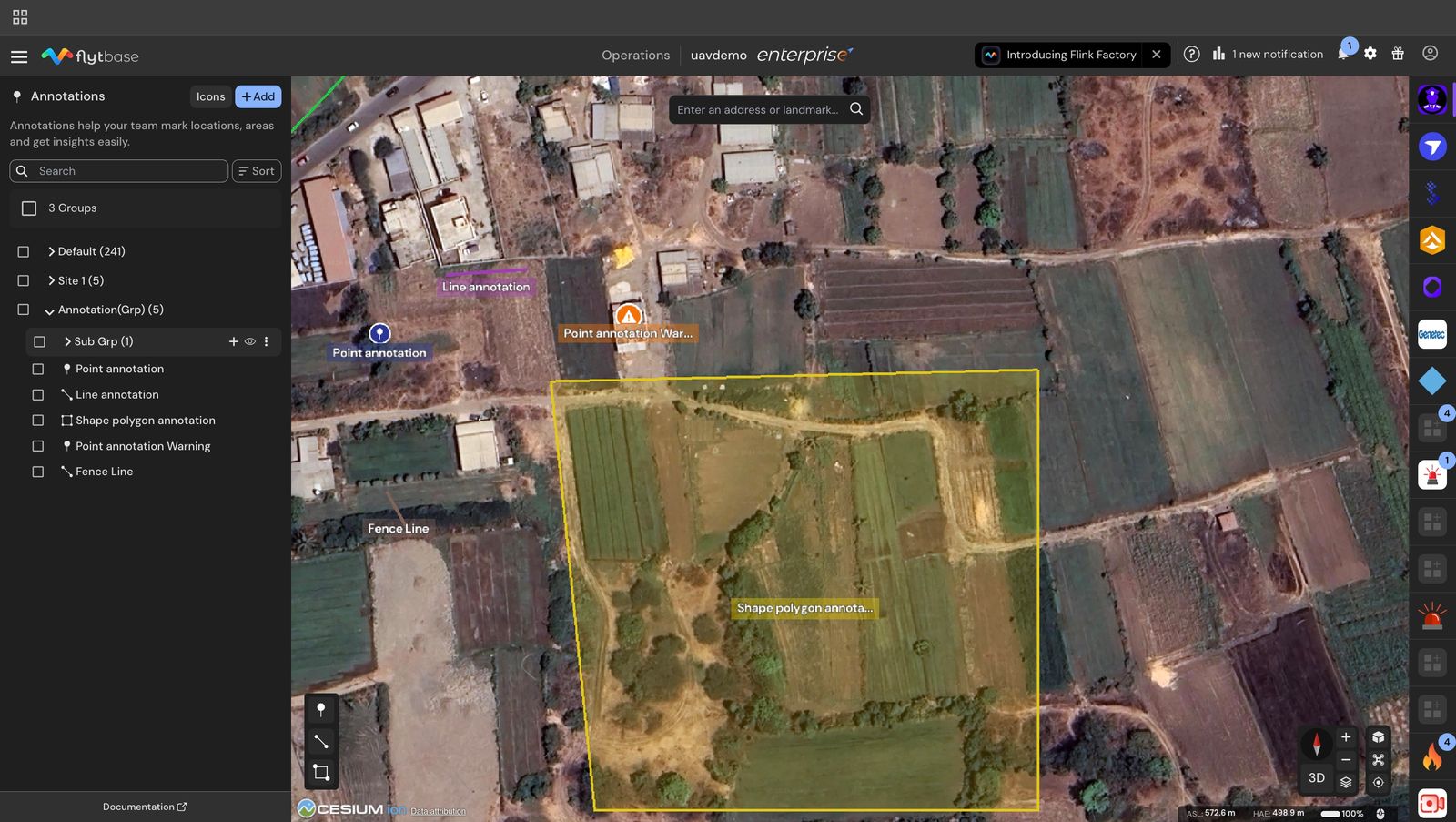
Click on the symbol in front of the group to hide all annotations under that group.
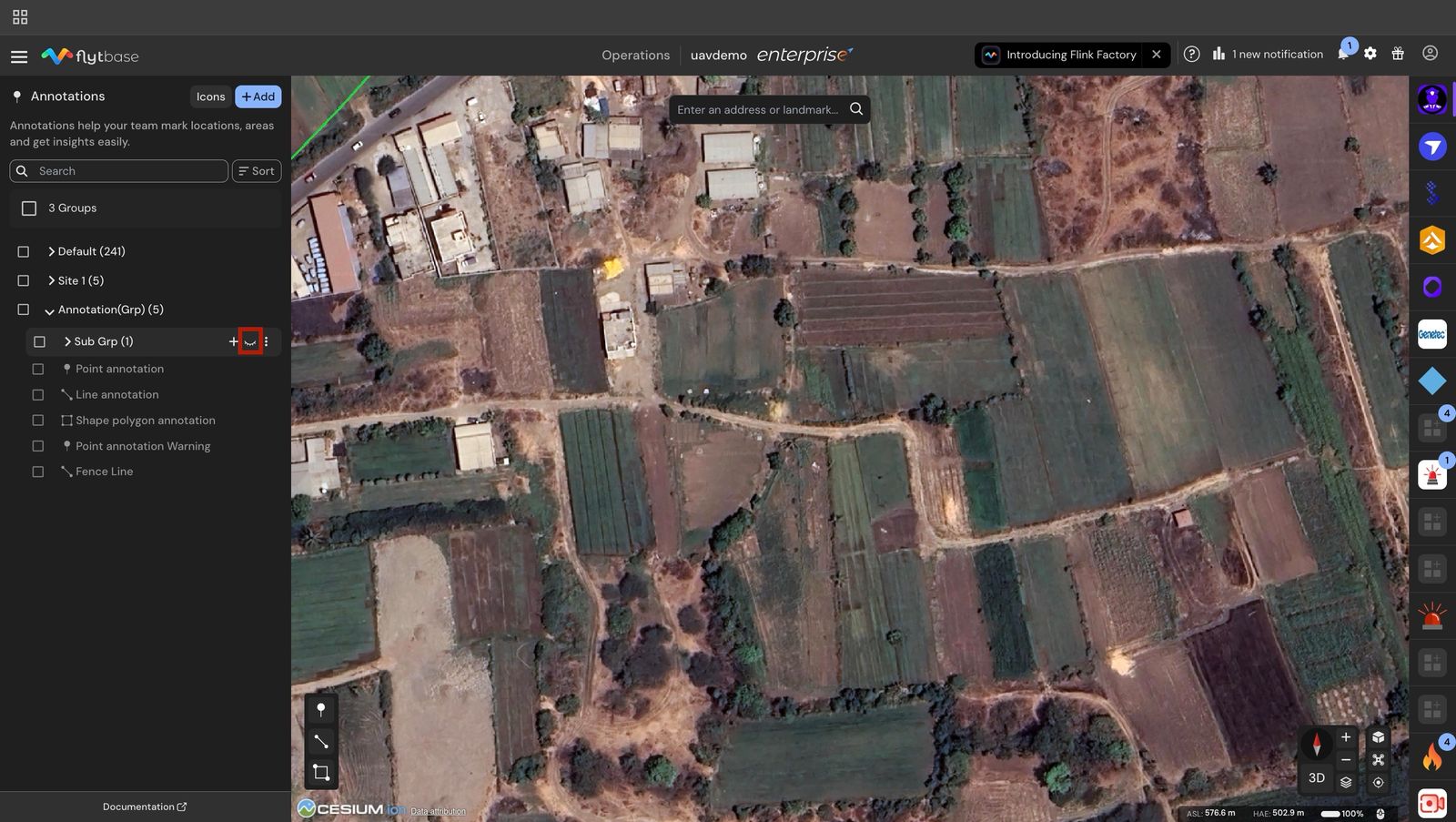
You can use sub-groups to break down complex areas, like different floors of a building or sections of a large inspection zone.
Multi-select and bulk actions
You can act on several items at once.
- Use the checkbox on a group or annotation row to add it to the selection.
- Hold Ctrl (Windows/Linux) or Cmd (macOS) while clicking a row to add or remove it from the selection.
- Use the top checkbox to clear the selection.
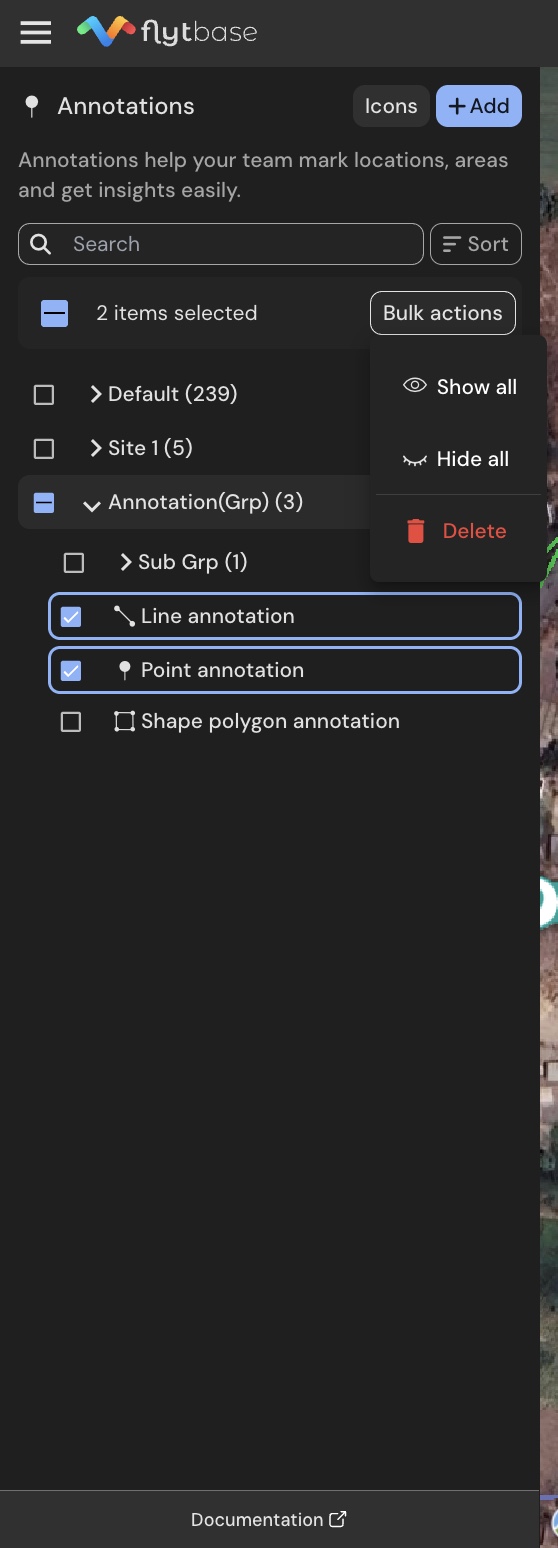
When you have one or more items selected, a Bulk actions button appears at the top of the list with these options:
Was this helpful?