
Setup Private Cloud Storage (AWS S3)
Follow the instructions in this guide to set up your private cloud storage using AWS S3 and enable media storage on a secure Cloud for your autonomous BVLOS drone operations.
FlytBase supports the upload and storage of media captured during drone operations in a private Amazon S3 bucket. Click here to learn more about Amazon S3, and follow the instructions below to set up your own S3 bucket.
Step 1: Create/ Sign in your AWS Account
Sign in to your AWS Account here: https://aws.amazon.com/. Click on Create an Account if an account does not exist.
Step 2: Create Bucket
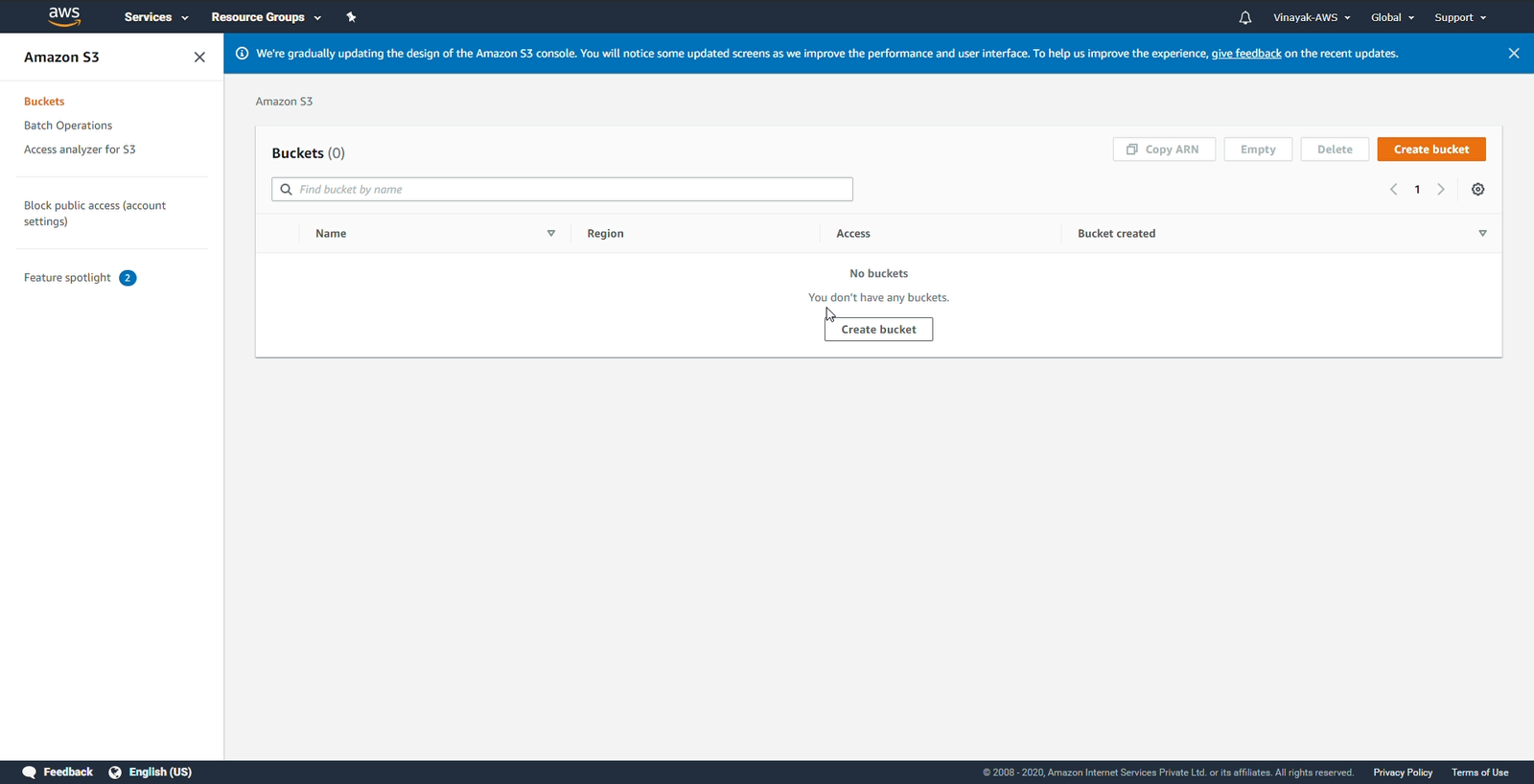
Go to the Bucket tab in the Amazon S3 console. Click on Create Bucket to create a bucket in the preferred region.
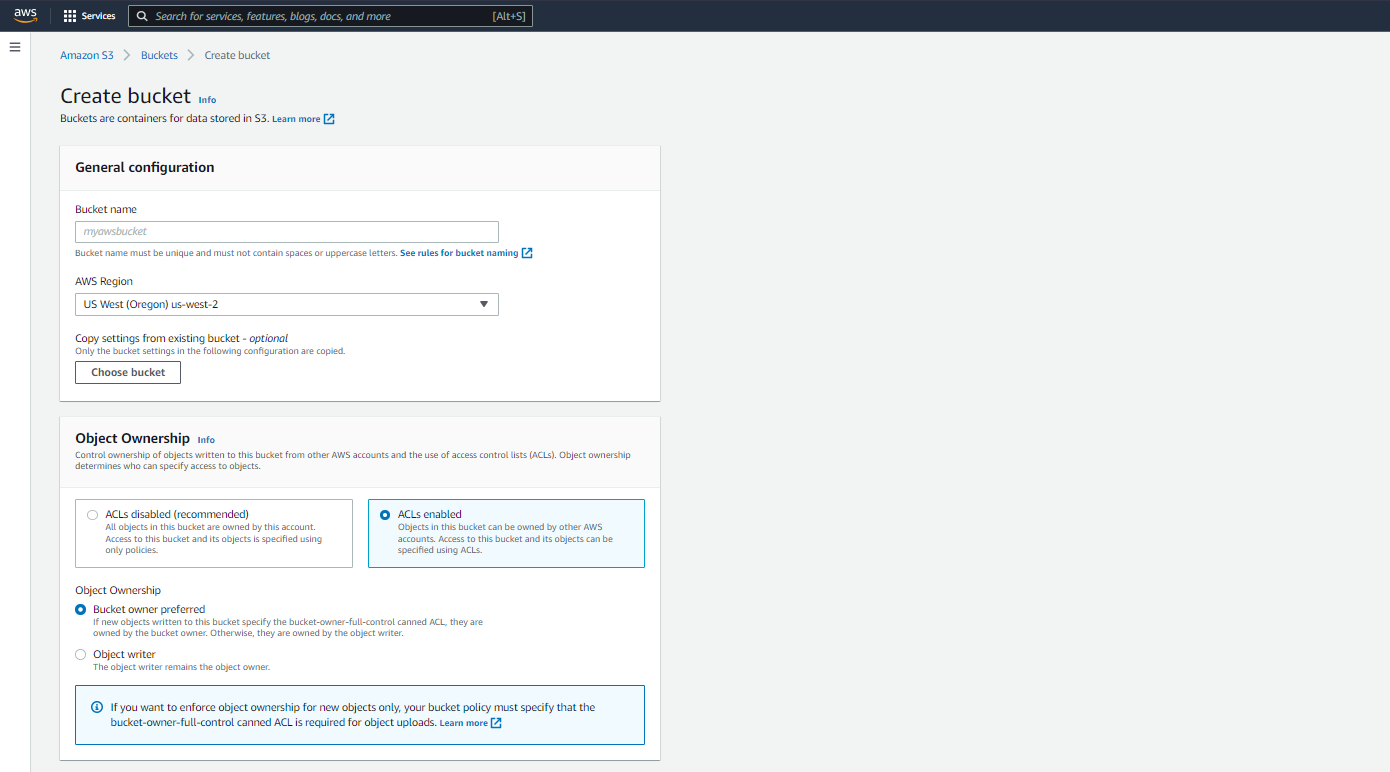
Step 3: ACL and Object Ownership
Click on ACLs Enabled and select the Object Ownership to Bucket owner preferred.
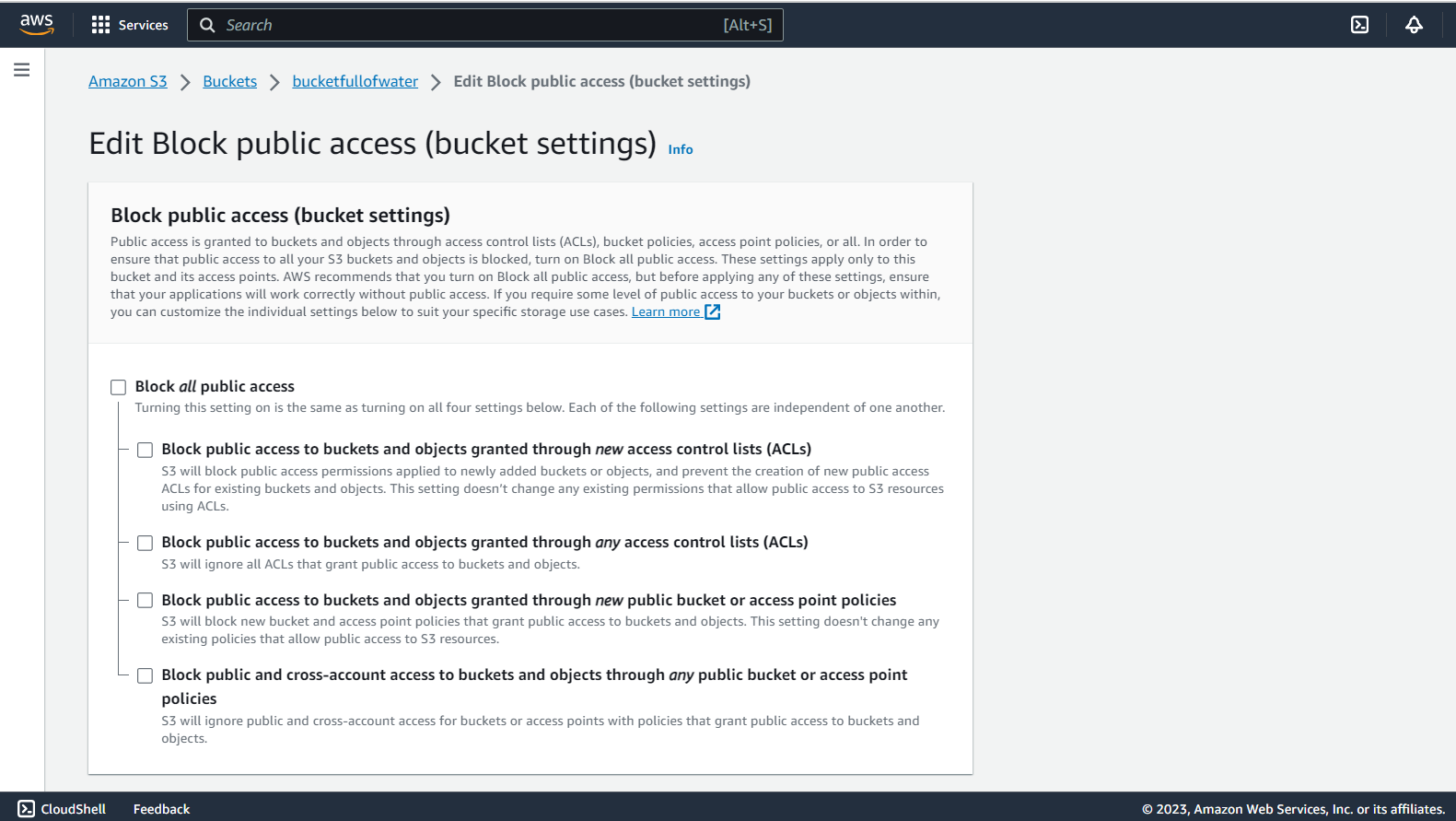
Step 4: Edit Block Public Access
Under the Edit Block public access tab, enable Block **all** public access by checking the square box.
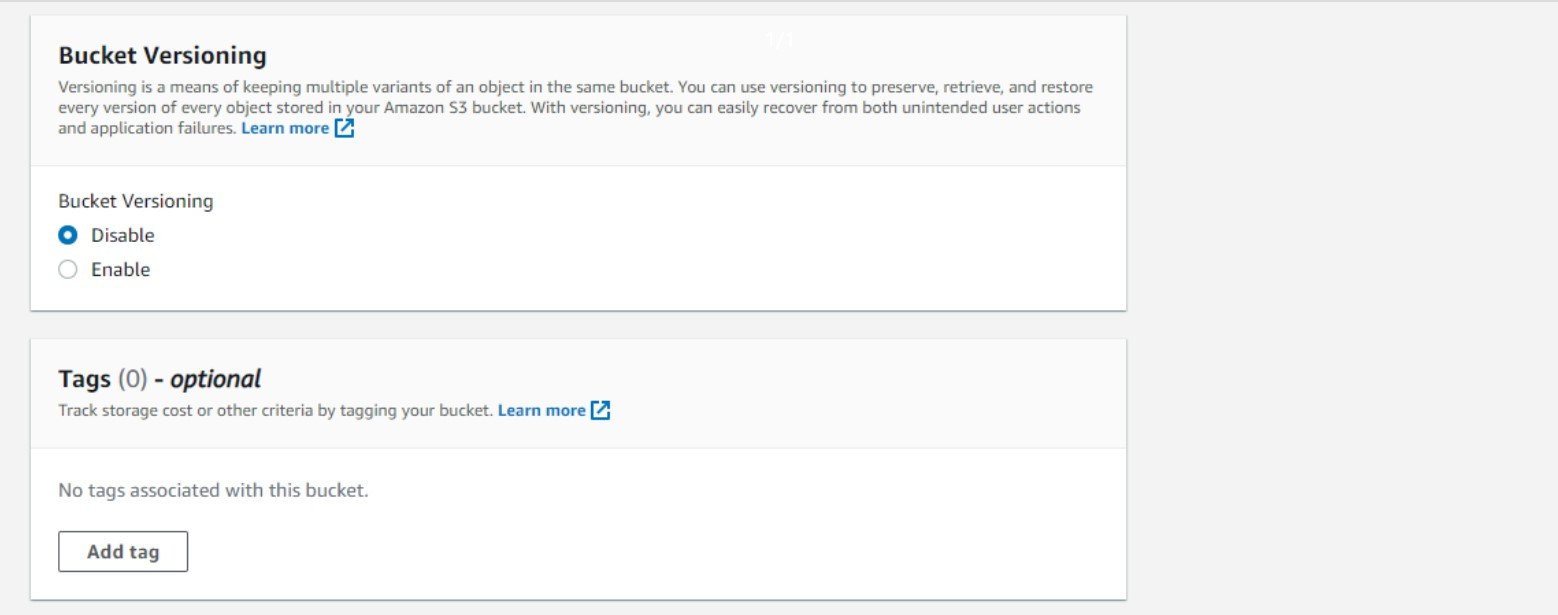
Step 5: Bucket Versioning
Under the Bucket Versioning tab, click on Disable.
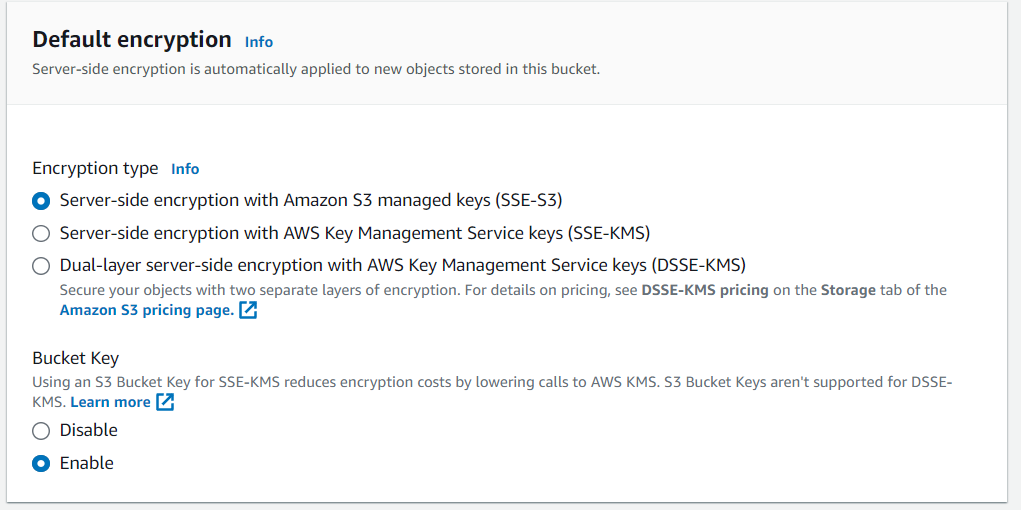
Step 6: Configuring Default Encryption
Now, under the Default Encryption tab, set the following options:
- For Encryption type, select Server-side encryption with Amazon S3 managed keys (SSE-S3)
- Set Bucket Key to Enable
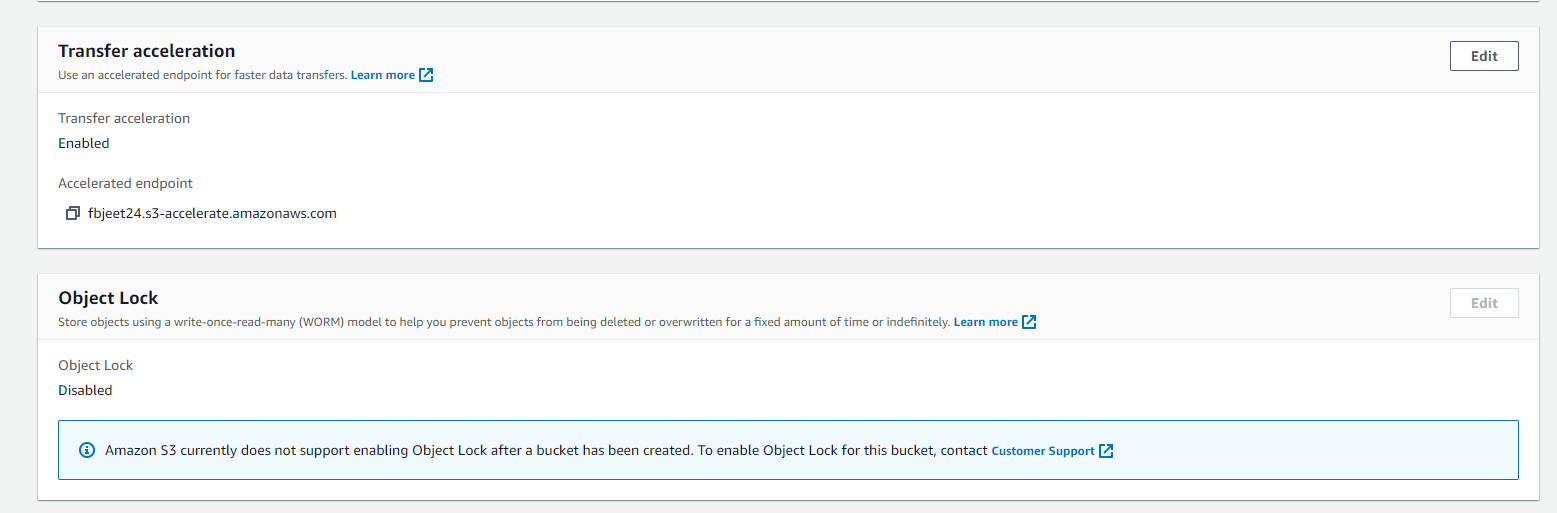
Step 7: Enable Transfer Acceleration
Once the Bucket has been successfully created, navigate to Bucket Name -> Properties -> Transfer acceleration and edit it to Enabled.
Step 8: Editing Bucket Policy
Navigate to Bucket Name -> Permissions -> Bucket Policy. Paste the following JSON code snippet, and replace Bucket_Name with the actual name of the Bucket.
{
    "Version": "2012-10-17",
    "Id": "Policy1586431420805",
    "Statement": [{
        "Sid": "Stmt1586431413927",
        "Effect": "Allow",
        "Principal": {
            "AWS": "arn:aws:iam::805060674250:user/storage-flytbase"
        },
        "Action": "*",
        "Resource": [
            "arn:aws:s3:::Bucket_Name",
            "arn:aws:s3:::Bucket_Name/*"
        ]
    }]
}
Step 9: Update CORS Configuration
Now, proceed to Bucket Name -> Permissions -> CORS Configuration. To update the CORS Configuration, you will need your FlytBase Organization URL.
For instance, if your Organization's URL is org_sub_domain.flytbase.com, then update the AllowedOrigins array as follows:
[
    {
        "AllowedHeaders": [
            "*"
        ],
        "AllowedMethods": [
            "GET"
        ],
        "AllowedOrigins": [
            "https://org_sub_domain.flytbase.com/*"
        ],
        "ExposeHeaders": [],
        "MaxAgeSeconds": 1800
    }
]
Step 10: Inform FlytBase Support for S3 Bucket Activation
Once you have completed all the steps, please share the Bucket Name and the AWS Region ID to support@flytbase.com. Our Support team will then link your AWS S3 Bucket to your Organization.
After creating your Organization, and linking an AWS S3 Bucket to it, the media files captured during flights will be uploaded to your private cloud storage automatically.
Was this helpful?