
Setting Up Authenticated RTSP Streaming
Step-by-step guide for generating authenticated RTSP links and configuring VLC Media Player access. Authentication process applies to Milestone XProtect and Genetec platforms.
While this example demonstrates VLC Media Player, the authentication workflow is identical for Milestone XProtect and Genetec Security Center. All three platforms use clean links and display pop-up credential dialogs.
Generating Authenticated RTSP Links in FlytBase
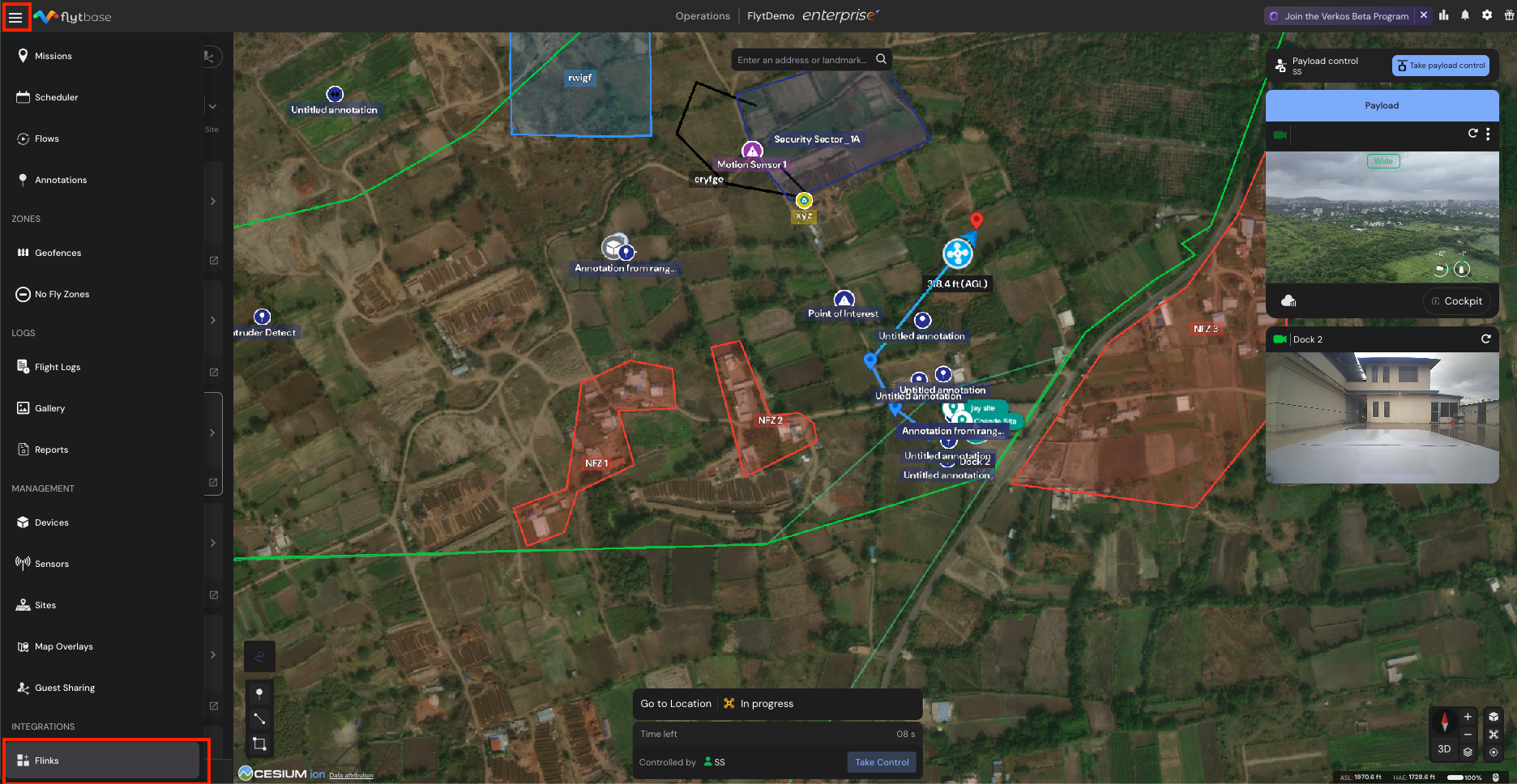
Step 1: Navigate to Flinks Section
From your FlytBase Dashboard, click on the navigation panel in the top left corner and navigate to the Flinks section.
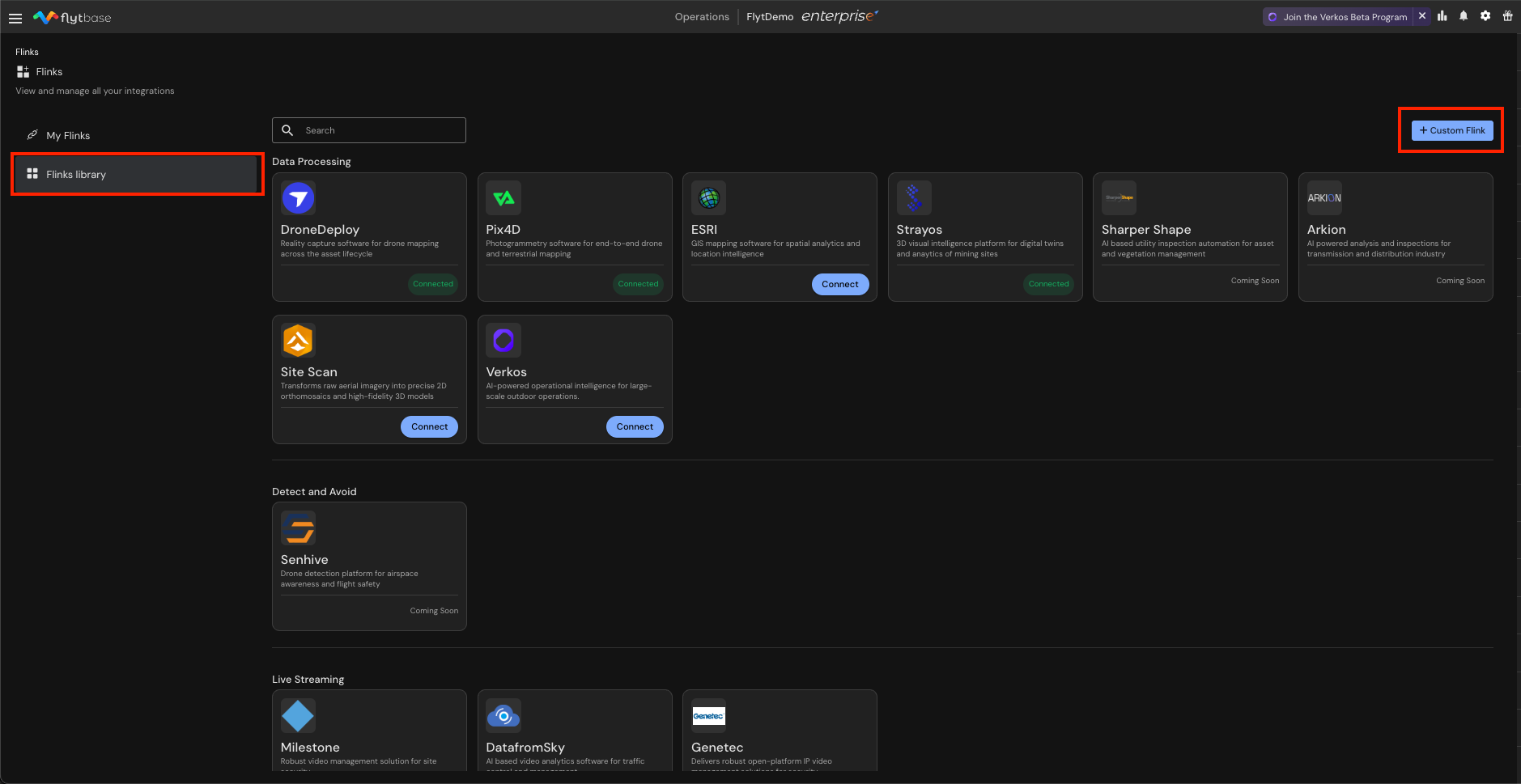
Step 2: Access Flinks Library
Go to the Flinks Library section and click on Custom Flink.
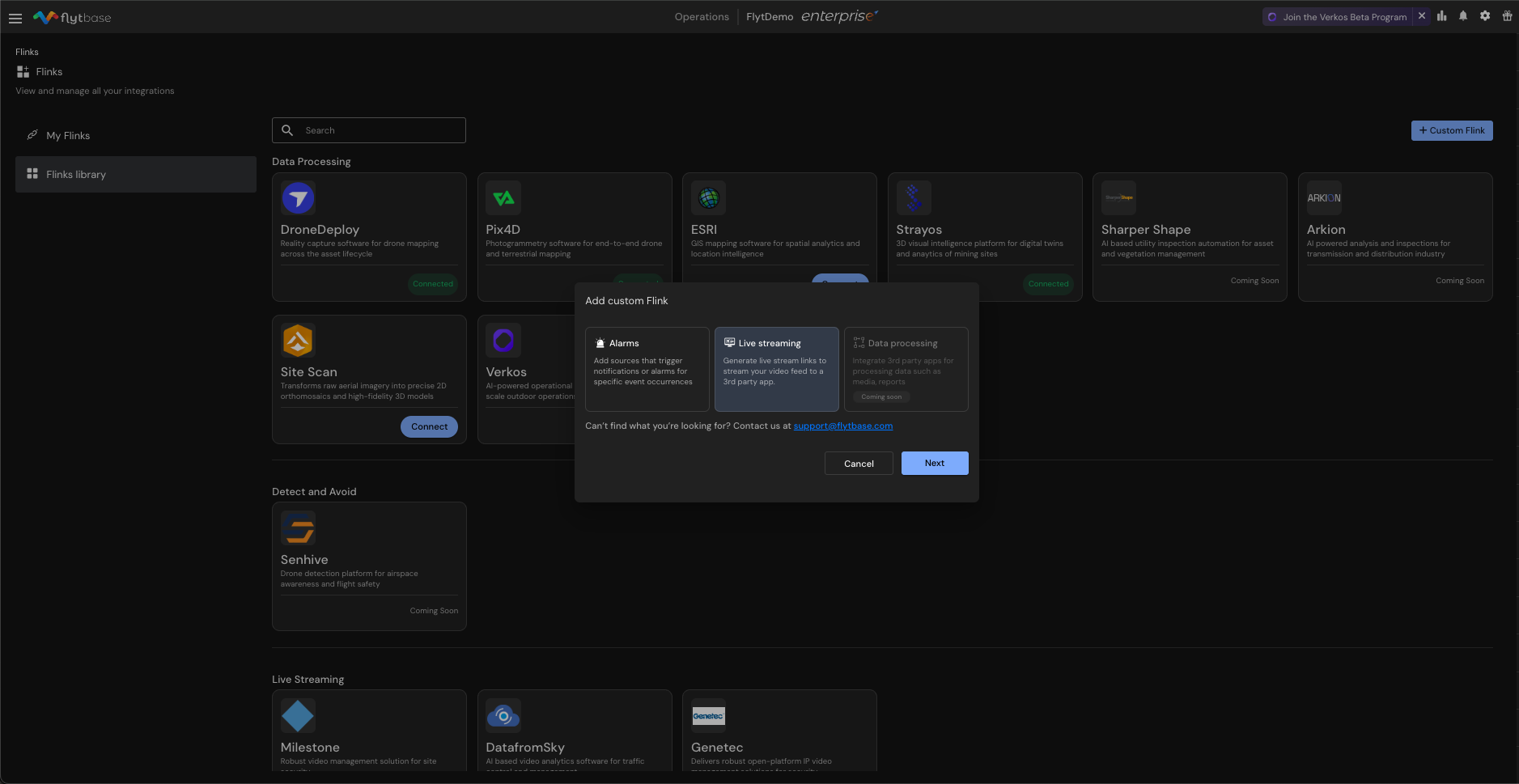
Step 3: Select Live Streaming Option
Select the Live Streaming option from the available Flink types and click Next.
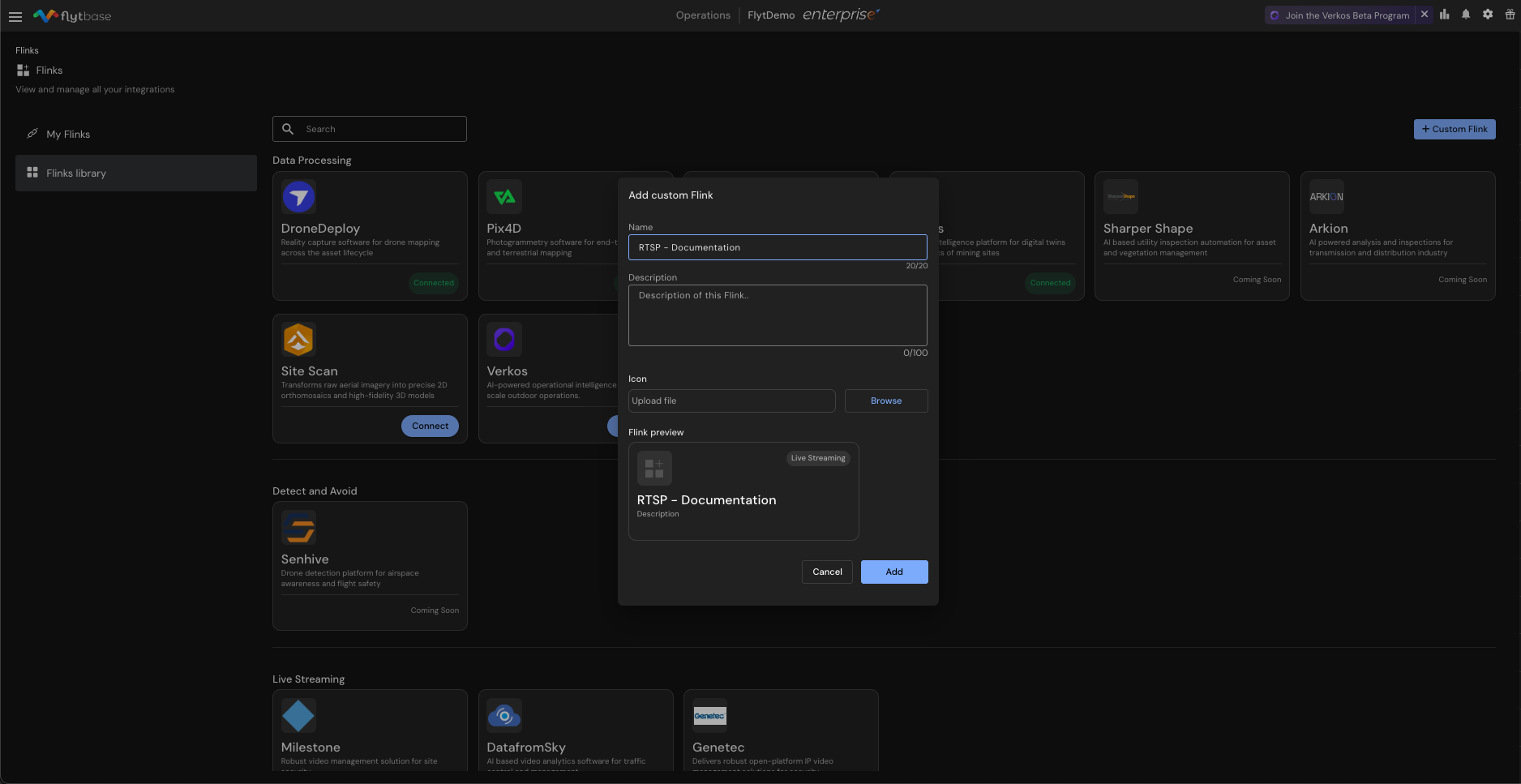
Step 4: Configure your Flink
- Name: Enter a descriptive name that reflects your streaming purpose (e.g., "Security Monitoring RTSP", "Maintenance Team Stream", or "Operations Center Feed")
- Description: Provide context about the intended use case, such as "Authenticated RTSP stream for external VMS integration" or "Secure streaming access for operations team monitoring"
- Icon (Optional): Upload a custom icon to easily identify this Flink in your dashboard
- Click Add to create the Flink and make it available in your My Flinks collection
Step 5: Access Your Created Flink
Once created, you will find your new Flink in the My Flinks section. Click on your newly created Flink to configure streaming options.
Step 6: Generate Streaming Links
- Select whether you want to generate links for the Dock or Payload camera
- Important: Check the option "Secure the link with username and password" for authenticated streaming
- Click the Generate Link button
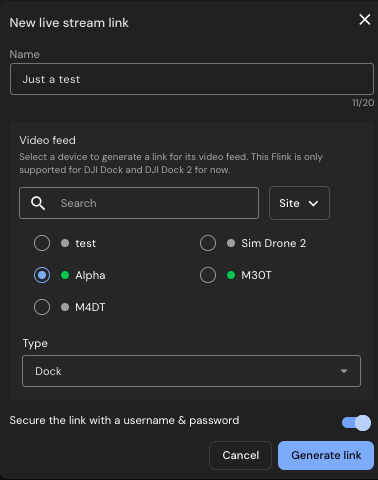
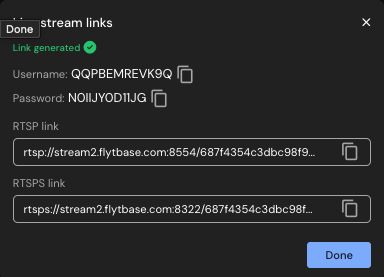
The system will generate:
- Username and Password: Automatically created credentials for authentication
- RTSP Link: Standard streaming link (e.g.,
rtsp://stream2.flytbase.com:8554/...) - RTSPS Link: Encrypted streaming link (e.g.,
rtsps://stream2.flytbase.com:8322/...)
Configuring VLC Media Player
Step 1: Open Network Stream
- Launch VLC Media Player
- Go to File menu
- Select Open Network
Step 2: Enter Streaming URL
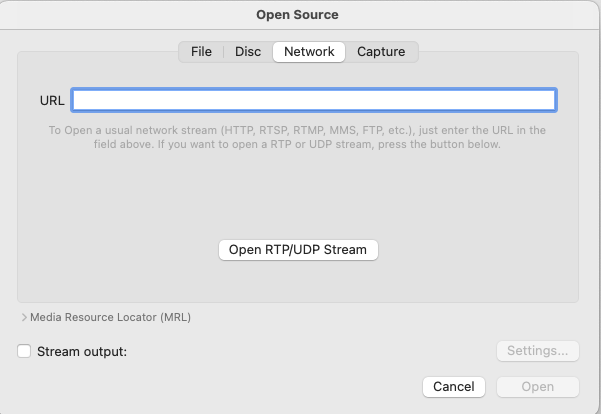
- The Open Source dialog will appear
- Ensure the Network tab is selected
- Paste your RTSP link (without embedded credentials) in the URL field
- Click Open
Step 3: Enter Authentication Credentials
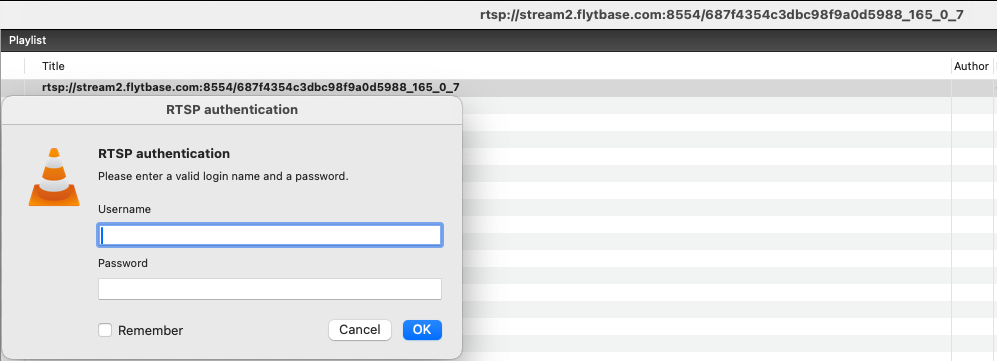
- VLC will display an RTSP Authentication pop-up dialog
- Enter the Username provided by FlytBase
- Enter the Password provided by FlytBase
- Optional: Check Remember to save credentials for future sessions
- Click OK to authenticate
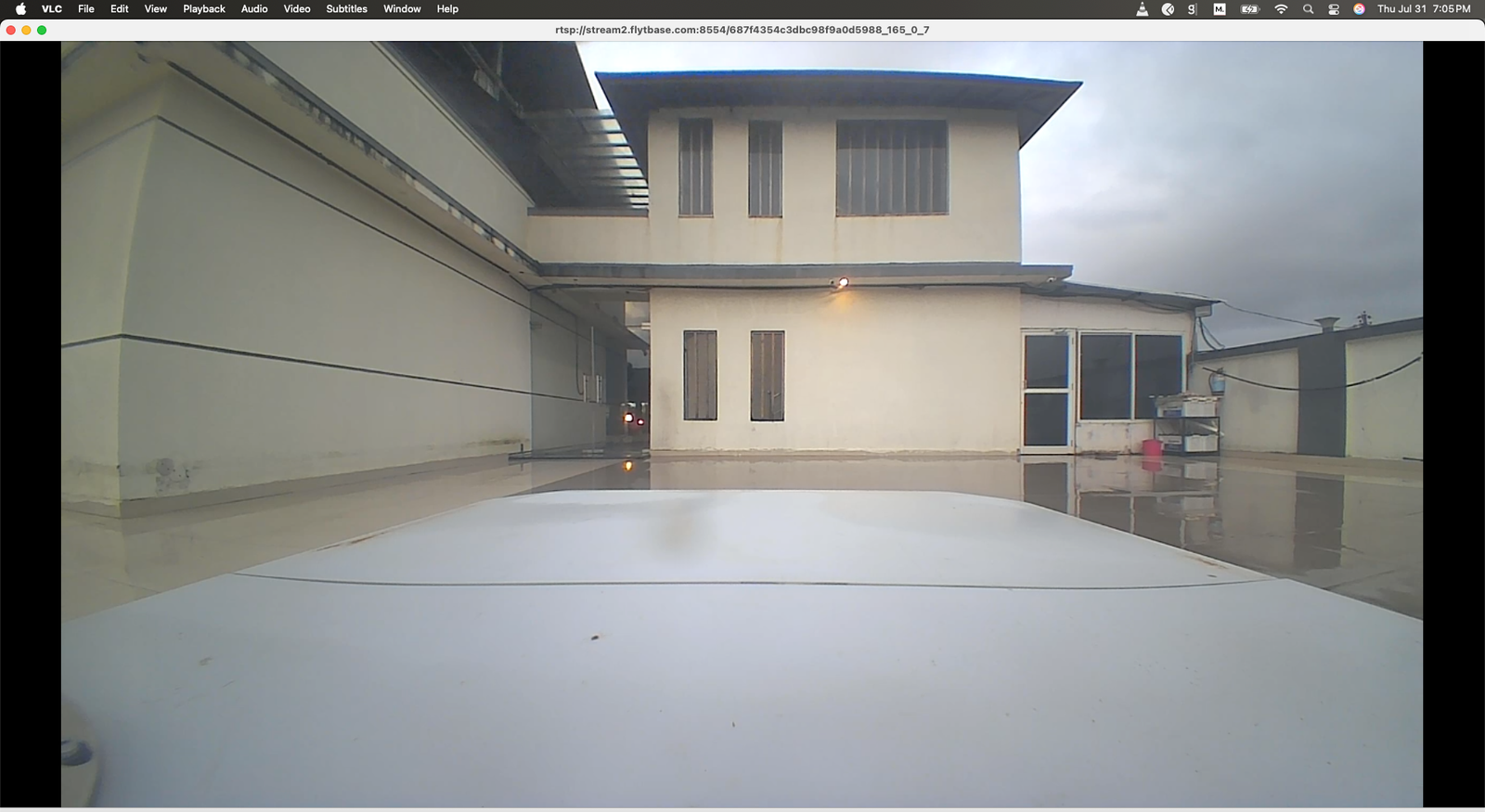
Step 4: View Live Stream
Once authenticated, the live video stream will open in a new VLC window, displaying your docking station camera feed in real-time.
Additional Notes
Payload Camera Access
This same process works for accessing your drone's payload camera feed. Simply select "Payload" instead of "Dock" when generating streaming links in Step 6.
Protocol Selection
- Use RTSP for local network access and maximum compatibility
- Use RTSPS for secure transmission over public networks (requires proper certificate configuration)
Troubleshooting Tips
- Ensure your firewall allows access to the streaming ports (8554 for RTSP, 8322 for RTSPS)
- Verify network connectivity between your device and the FlytBase system
- Double-check that you're using the correct username and password from the FlytBase dashboard
- For RTSPS connections, ensure proper TLS certificate configuration
Professional VMS Integration
The authentication process demonstrated with VLC applies identically to professional Video Management Systems:
- Milestone XProtect: Add the clean RTSP/RTSPS link as a camera source, enter credentials when prompted
- Genetec Security Center: Configure the stream URL in camera settings, provide authentication through the VMS interface
Both systems will display similar authentication dialogs and handle the secure connection establishment automatically.
Was this helpful?